mirror of
https://github.com/obsproject/obs-studio.git
synced 2025-12-04 04:24:21 -05:00
Page:
Laptop GPU Selection Nvidia
Pages
AMF HW Encoder Options And Information
AMF Options
Advanced Recording Guide With Multi Track Audio
Browser source development and debugging
Build Instructions For FreeBSD
Build Instructions For Linux
Build Instructions For Mac
Build Instructions For Windows
Build Instructions for Windows ARM64
Building OBS Studio
Clearing OBS Browser Cookies
Custom Themes
Download Multiplatform Build
Dropped Frames And General Connection Issues
Filters Guide
GPU Overload Issues
Game Capture Guide
General Performance And Encoding Issues
Getting Started With OBS Scripting
Getting Started With OBS Studio Development
Getting Started With Track Matte Stinger Transitions
High precision color spaces (including HDR)
Home
How To Contribute Translations For OBS
How To Create a 'Be Right Back' Screen
How To Disable Windows 10 Gaming Features
How To Disable Windows 10 Hardware GPU Scheduler
Install Instructions
Installing Plugins On Windows
Keyboard Shortcuts
Known Conflicts
Laptop GPU Selection Amd
Laptop GPU Selection Nvidia
Laptop GPU Selection Windows 10
Laptop Performance Issues
Laptop Troubleshooting New
Laptop Troubleshooting Windows 10
Laptop Troubleshooting
Launch Parameters
Legacy Build Instructions for Windows
Linear Color Blending
MacOS Virtual Camera Compatibility Guide (Legacy)
Minecraft Not Working With Game Capture
NVENC support in OBS
OBS Project Bounty Program
OBS Studio Filters Guide
OBS Studio Overview
OBS Studio Quickstart
OBS Studio Theme System
Post Production Tools You Can Use
Private Stream Hosting
Profiles And Scene Collections
Release Dependency Versions
Scripting Tutorial Halftone Filter Listing
Scripting Tutorial Halftone Filter
Scripting Tutorial Source Shake Listing
Scripting Tutorial Source Shake
Service Submission Guidelines
Sources Guide
Stream Buffering Issues
Streaming With SRT Or RIST Protocols
Surround Sound Streaming And Recording
System Requirements
Tips For Writing A Good Proposal
Troubleshooting Guides
Understanding Aspect Ratio
Understanding The Mixer
Unofficial Linux Builds
Using Custom OAuth Credentials
Window & Game Capture Compatibility Data
Windows 10 App Volume Device Preferences
No results
3
Laptop GPU Selection Nvidia
Manuel Kroeber edited this page 2019-11-21 23:11:54 +01:00
If you tried everything in this guide and are still having issues, please make a post on the forums or stop by the OBS Discord server.
GPU selection for NVIDIA based laptops
- This guide will show you how to select the graphics card OBS is running on using the native control panel from NVIDIA.
- It is valid if you are running Windows 7, Windows 8 or Windows 10 prior to version 1903.
- If you run Windows 10 1903 or newer, use this guide instead.
Setup
- Close OBS if it is currently open
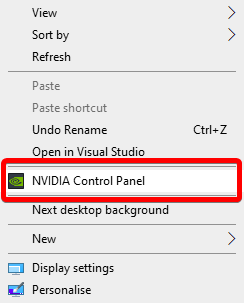
- Go to the NVIDIA Control Panel by right clicking on your desktop, and then clicking on "NVIDIA Control Panel"
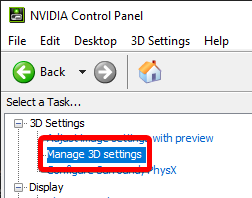
- Click on "Manage 3D Settings" if it is not already selected
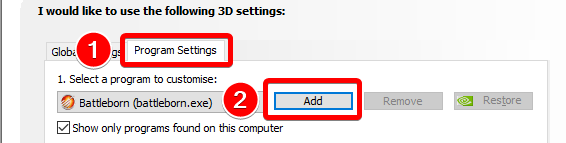
- Under the Program Settings tab, click the "Add" button under where it says "Select a program to customize:"
- click "Browse" at bottom of the dialog to search for OBS
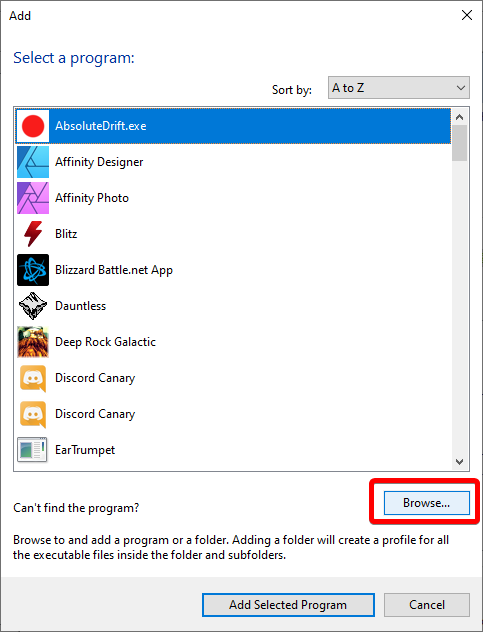
- Navigate to the .exe path for OBS and add it to the list. Default paths are:
- 64-bit OBS (default):
C:\Program Files\obs-studio\bin\64bit\obs64.exe - 32-bit OBS:
C:\Program Files (x86)\obs-studio\bin\32bit\obs32.exe
- 64-bit OBS (default):
- Make sure it is selected in the drop down list
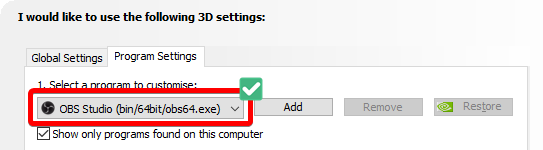
- Then below, look for "Select the preferred graphics processor for this program". Then set the option, depending on which mode you need:
For Display Capture
- Choose "Integrated Graphics. Close the control panel and start OBS.

For Window Capture / Game Capture
- Choose "High performance NVIDIA processor". Close the control panel and start OBS.



