Table of contents (click to expand)
Common issues and fixes
- 64-bit Windows builds
- Crash during setup
- Game is too slow or fast
- Game is choppy in full screen mode
- Games with unexpected behaviour
- Install/setup process takes forever
- Game fails to detect CD-ROM and will not start
- Screen flickering
- Setup reports
not enough space - Reversed stereo in game
- LaserLock copy protection
- Garbled GoG DOS launchers
Game-specific issues and fixes
- 1942: The Pacific Air War (including Gold)
- Across the Rhine
- Albion
- Alien Trilogy
- Alone in the Dark 1 and 2
- Alpha Storm
- Another World / Out of This World (1991)
- Arctic Baron / Transarctica
- Around the World - Christmas (1999)
- Atlantis: The Lost Tales
- Bad Cat
- BAO Flight Simulator - Flight Shop Addon
- Beneath a Steel Sky
- Big Red Racing
- Blake Stone: Aliens of Gold and Planet Strike
- Blood
- CHAMP Galagon
- Chaos Engine
- Chasm: The Rift
- Chessmaster 3000
- Chrono Master
- Command & Conquer 1: Tiberian Dawn
- Command & Conquer: Red Alert 1
- Constructor
- Conquest of the New World
- Corncob 3-D & Corncob Deluxe
- Crazy Brix
- Cyber Riders
- Dark Seed 2 (Win3.1)
- Descent 1 and 2
- Doom 1 and 2
- Down in the Dumps
- Dragon's Lair (1993)
- Duke Nukem 2
- Duke Nukem 3D
- Dunkle Schatten 2
- Eddy and Co (1995)
- Elder Scrolls Adventures: Redguard (1998)
- Eric the Unready
- Exhumed / Powerslave (1996)
- Fallout
- Fifa 96
- Flashback
- Fleet Defender: The F14 Tomcat Simulation
- Flight of the Amazon Queen
- Formula One Grand Prix
- Frederik Pohl's Gateway
- Future Wars
- Ghostbusters II
- Gods
- Gold of the Aztecs, The
- GTA/GTA "London"
- Hammer of the Gods
- Heroes of Might & Magic
- Hi-Octane
- Hostages (USA: Hostage: Rescue Mission)
- In the 1st Degree
- Indiana Jones and His Desktop Adventures (Win3.1)
- Jazz Jackrabbit 1
- JetFighter: The Adventure
- Johnny Bazookatone
- Judge Dredd
- Jungle Strike
- Jurassic Park (1993)
- Jurassic War
- King's Quest 4
- Lands of Lore 2: Guardians of Destiny
- Last Express
- Leisure Suit Larry 7
- Lemmings (1991)
- Lemmings 2: The Tribes
- Lode Runner: The Legend Returns
- MechWarrior 1
- Might and Magic: World of Xeen
- Mortal Kombat 3
- Mortal Kombat Trilogy
- Need for Speed
- Operation Body Count
- Operation Stealth (USA: James Bond 007: The Stealth Affair)
- Out of This World / Another World (1991)
- Perfect Assassin
- Pinball Dreams
- Primal Rage
- Prince of Persia
- Privateer 2
- Pro Pinball
- Quake 1
- Quest for Glory II: Trial by Fire
- Ravenloft: Strahd's Possession
- Realms of the Haunting
- Rescue Rover 1 and 2
- Retribution
- Ripley's Believe It or Not!: The Riddle of Master Lu
- Rise of the Triad: Dark War
- Rocky's Boots
- Screamer
- Screamer 2
- SFPD Homicide
- Shadow Warrior
- SimCity 2000
- Skynet / The Terminator: SkyNET
- Spelljammer: Pirates of Realmspace
- Star Rank Boxing II
- Star Wars Dark Forces
- Stargunner
- Supaplex
- Super Dog Story
- Swing / Marble Madness
- Tex Murphy: The Pandora Directive
- Tex Murphy: Under a Killing Moon
- The Elder Scrolls: Arena
- The Elder Scrolls: Daggerfall
- Tie Fighter
- Time Warriors
- Tomb Raider 1
- Ultima Underworld I & II
- Viper (1998)
- Virtual Pool
- Wing Commander: Armada
- Wing Commander 1
- Wing Commander 2
- Wing Commander 3
- Wing Commander 4
- Wingstar
- Witchaven I & II
- Wizball
- Wolfenstein 3D and the Spear of Destiny Mission Packs
- Wolfenstein 3D Super Upgrades: WolfMaster 2.0
- Worms
- X-COM: Terror from the Deep
64-bit Windows builds
If you cannot run the 64-bit builds of DOSBox Staging on Windows because of the following error message:
The code execution cannot proceed because VCRUNTIME140_1.dll was not found.
Reinstalling the program may fix this problem.
You need to install the latest 64-bit Microsoft Visual C++ Redistributable for Visual Studio called vc_redist.x64.exe.
[Top]
Crash during setup
Should your game installation stop/crash while entering the sound setup it's likely due to a buggy DOS extender, namely CauseWay. You should get stuck to the screen:
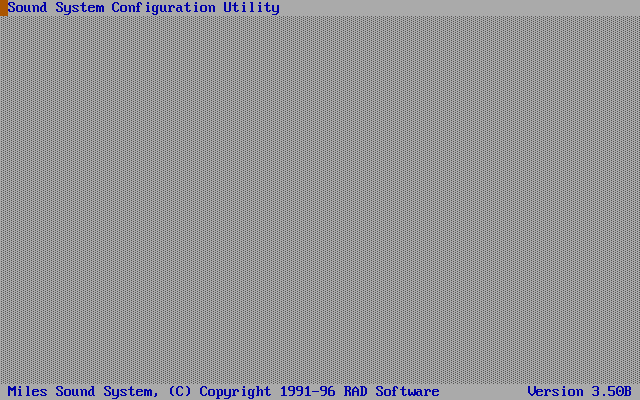
You can try finding a reference to that buggy CauseWay extender simply by opening the sound setup program (i.e. SETSOUND.EXE) in a text editor. Search for the following string:
CauseWay DOS Extender v3.14 Copyright 1992-96 Michael Devore. All rights reserved.
Apparently, the 3.14 version is buggy for sure, although later versions may run just fine.
One workaround involves using the improved HX memory extender: DPMILD32.EXE SETUP.EXE. The DPMILD32.EXE file is located in the BIN folder in HXRT220.zip.
However, if that doesn't fix it, then simply shut down DOSBox (by pressing CTRL+F9) and launch the sound setup directly (e.g. SETSOUND.EXE).
Games impacted
Extreme Assault, Mortal Kombat Trilogy, Network Q RAC Rally Championship**
[Top]
Game is too slow or fast
By default, DOSBox Staging uses 3000 cycles for real mode programs, and 60,000 cycles for protected mode programs.
This will give you good results for most programs but sometimes you'll need to manually tweak the cycles setting per game. Some games will run either too slow or too fast with these default settings, or they will misbehave or crash, or you'll get audio glitches and dropouts.
Read the Real and protected mode section of the Getting Started guide for more info.
Refer to the table in the Finding the correct speed for a game to set period-accurate cycles values for a given CPU.
Also, have a look at the game-specific config recommendations on this page.
[Top]
Game is choppy in full screen mode
If you run your games in full screen mode and discover that the video is choppy, open dosbox-staging.conf and set either glshader = none or glshader = sharp.
[Top]
Games with unexpected behaviour
DOS/32A
Should your games suffer from choppy FMVs, crashes, freezes, messy colours, distorted sound, or even make your keyboard unresponsive (e.g. Screamer 2), there's a chance you're relying on the DOS/32A extender. If that's the case simply revert back to the DOS/4GW extender packaged with the game. This should do the trick.
Keep an eye on the DOS/32A compatibility list.
core = normal
Another option to check is the core type set in your config file. When you have weird or unexpected results with a game it might be wise to assign the following value:
[cpu]
core = normal
[Top]
Install/Setup process takes forever
Should a game take a very long time (e.g. more than 30 minutes) to install or for a
patch to apply, then you'll have to crank the cycles count up to the max
value. You can do so either by changing the cpu_cycles parameter in the
global config file (dosbox-staging.conf) to cpu_cycles = max or straight from the DOS C:\> prompt before launching INSTALL.EXE (or the installation executable specific to your game) by typing:
C:\>cpu_cycles max
C:\>INSTALL.EXE
Games impacted: Blood, Conquest of the New World, Redneck Rampage, Redneck Rampage Rides Again, etc.
[Top]
Game fails to detect CD-ROM and will not start
Many DOS games require the game's CD-ROM to be inserted into a CD-ROM drive or the game will not start at all.
You can fix this issue in one of two ways:
I. Imgmount the game's CD-ROM disc image as the game's D drive:
imgmount d c:\dosgames\marioms\mario_is_missing.iso -t cdrom
imgmount d c:\dosgames\descent2\DESCENT2.CUE -t cdrom
Note: If the game in question happens to support CD-Audio (For example: Descent 2), imgmounting the CUE file will also enable the game's CD-Audio.
Vogons Thread: List of Games Specifically Using CD Audio
OR
II. Mount the physical CD-ROM as the game's D drive:
mount d d:\ -t cdrom
Note: If your actual optical disc drive has a different drive letter, change d:\ to the relevant drive letter.
mount d f:\ -t cdrom
[Top]
Screen flickering
-
If the whole screen or part of it (like the HUD) is flickering in late-90s games, try using
machine = vesa_nolfb. This fixes flickerin issues in Build engine games (e.g., Blood, Duke Nukem 3D, etc).In some games, such as Blood v1.10+, you might need to use
machine = svga_paradiseinstead. -
In Hercules, CGA, PCjr/Tandy, EGA, and older VGA titles, try setting
vmem_delay = onand a low period-accuratecpu_cyclessetting (see this table).
[Top]
Setup reports "not enough space"
A larger C: drive is required to install full/complete versions of games like Fallout, M.A.X, KKND, William Shatner's TekWar, etc. Configure DOSBox Staging with a hard drive of at least 1GB to proceed. To do that ensure to pass the -freesize parameter to DOSBox Staging (mind the quotes!):
$ ./dosbox -c "mount C /home/dosbox/games -freesize 1024" -c "C:"
[Top]
Reversed stereo in game
This is a common issue so we're including it here. For a workaround read this:
Sound issues: reversed stereo.
[Top]
LaserLock copy protection
LaserLock also known as LaserLok is a CD-ROM copy protection scheme introduced in 1995. When you run a game with LaserLock its presence can be observed from a cryptic text: "Checking CD-ROM. This will take 10 to 25 seconds depending on your CD drive..." followed by some kind of error message like "Stack fault.".
To defeat LaserLock you must replace DOS/4GW with a different DOS extender like open source DOS/32 as LaserLock depends on DOS/4GW for its disc integrity checks. With Orion Burger (1996) simply download DOS/32 from the link below, place it into the game directory and run the game with DOS32A.EXE BURGER.EXE -c and the game runs normally.
The same approach should apply to all DOS games with LaserLock, however some games may come with the DOS extender bound to the main executable. In these cases use SB.EXE that comes with DOS/32. Running SB.EXE /? will show you help how to replace DOS/4GW with DOS/32. Please make a backup of your executable before attempting to replace the DOS extender.
Download DOS/32: dos32a-912-bin.zip
More about DOS/32: https://en.wikipedia.org/wiki/DOS/32
More about DOS extenders: https://en.wikipedia.org/wiki/DOS_extender
More about LaserLock: https://en.wikipedia.org/wiki/LaserLock
[Top]
Garbled GoG DOS launcher
To fix Garbled GoG DOS launchers, follow the instructions as specified here.
[Top]
1942: The Pacific Air War (including Gold)
To get sound, you need to use the third-party JEMM memory manager instead of Staging's built-in EMS memory support.
Download JEMM from here, then copy JEMM.EXE into the game folder (e.g., C:\MPS\1942).
The config should look like this (make sure JEMM is loaded before starting the game):
[dos]
xms = off
ems = off
umb = off

[autoexec]
C:
CD \MPS\1942
JEMMEX.EXE FRAME=E000 LOAD
1942
[Top]
Across the Rhine
Fixing Across the Rhine not installing due to lack of virtual memory
I. Open dosbox-staging.conf in a text editor, go to the [autoexec] section, and add the following line for your game folder mount:
mount c c:\dosgames -freesize 64
Note: Replace c:\dosgames with the relevant DOS game folder on your system. Additionally, Across the Rhine requires a minimum of 40 Megabytes (MB) of hard drive space and 12 Megabytes (12 MB) of swap file space, so for the -freesize switch, set the number to 52 or higher. In this case, the number 64 satisfies the hard drive space and swap file space requirements because the amount of overall drive space reported to the game installer by Dosbox-Staging will be 64 MB.
II. Save and close dosbox-staging.conf.
III. Open Dosbox-Staging, then mount or imgmount the Across the Rhine CDROM.
For example:
mount d d:\ -t cdrom
OR
imgmount d path\to\across_the_rhine.iso -t cdrom
Note: Replace d:\ or path\to\across_the_rhine.iso with the relevant location on your system, depending on the command you want to use.
IV. Across the Rhine's manual states that the game further requires a temp folder in order to run. At Dosbox-Staging's command prompt in the root of your mounted C drive, type the command md temp and press Enter. This command will create a new folder in your mounted C drive called c:\temp.
V. Navigate to your D drive, type install, and press Enter. The installer will now properly detect the missing virtual memory, allowing you to install the game normally.
[Top]
Albion
Albion can be tricky to set up with Gravis UltraSound music and sound effects.
Start with this game-specific local configuration (tailored for GUS):
[dosbox]
memsize = 24
startup_verbosity = quiet

[cpu]
cpu_cycles = 18000

[midi]
mididevice = none

[sblaster]
sbtype = none

[gus]
gus = true
ultradir = c:\ultrasnd

[dos]
xms = true
ems = false
umb = false

[autoexec]
mixer gus 250 /noshow
mixer gus r70 c40 /noshow
imgmount d cd/Albion.cue -t cdrom
mount c .
albion
mount -u d
mount -u c
exit
Acquire the Gravis UltraSound drivers for DOS (not part of Albion). It will consist of an ultrasnd/ directory with a midi subdirectory.
Place this ultrasnd/ directory inside the game's top-level directory, so it appears in the root of the mounted C drive.
Note: this ultrasnd/ directory only needs to contain the ultrasnd.ini file and midi/ sub-directory full of the PAT and MID files. The other content (SBOS, UltraMID, UltraINIT, etc.. can all be deleted), as shown:
ultrasnd/
├── midi
└── ultrasnd.ini
Finally, replace all instances of DOS4GW.EXE with DOS32a: rename the DOS32A.EXE to DOS4GW.EXE, and overwrite the original files. The new files will be 27 KB in size. Do this in the game's root directory (along size the albion.exe file), and inside the drivers/ directory (along side the main.exe file).
With those in place, run the game's setup.exe, select Gravis UltraSound for both music and sound effects and launch the game.
Inside the game at the main menu, select options, and then set the music's volume to 100 and SFX's volume to 127 (full). This lets the music play at a comfortable ambient level.
[Top]
Alien Trilogy
How to climb the ramps on Level 25
To go up the ramps, you must press the Shift key to run.
[Top]
Alone in the Dark 1 and 2
Fixing double-tap arrow not starting the running action
For Alone in the Dark 1, set cpu_cycles = 6000 in dosbox-staging.conf.
For Alone in the Dark 2, set cpu_cycles = 25000 in dosbox-staging.conf.
[Top]
Alpha Storm
Should you have a black screen instead of the intro video (the sound still plays fine, though), you'll have to rely on a small utility to get it back. As always thanks to @ripsaw8080 for providing such fix. Get it from that page.
Note: there's another fix available coded by a user from old-games.ru named Werta. It's a Windows tool automatically patching a bunch of the game files.
Fixing Alpha Storm's CD Audio not playing in the opening movie
This issue was fixed with the implementation of seeking in the MSCDEX driver for Dosbox-Staging 0.81.1 and beyond.
[Top]
Arctic Baron / Transarctica
The game measures the performance at the start of the game before the logo appears. It will then use this as a divider for the animation speed. That being said, you need to have a stable measurement during that phase or else the game will run too fast or too slow.
Moreover, the measured speed will also determine if the game runs with:
- Adlib only
- Adlib + Sound effects (in DMA mode)
- Sound effects only (in DAC mode)
On top of that, it is also cycle-sensitive. It uses the SB DAC mode and if the emulation runs too slowly, the effects might sound choppy.
~5000 cycles are recommended. A tone is played at the first company logo. If it sounds choppy, you have to increase or decrease the cycles. If the cycles are too high, the music might be missing.
[Top]
Around the World - Christmas (1999)
Fixing the static noise produced by sound effects
Around the World - Christmas (1999) produces a burst of static during gameplay every time one of the sound effects triggers.
To fix this issue, run Around the World - Christmas (1999) with the following command:
loadfix -25 XATW.EXE
[Top]
Atlantis: The Lost Tales
The game is unresponsive to mouse movement in DOSBox. Even after increasing mouse sensitivity in the global config file (dosbox-staging.conf), the game cursor will barely move. Thanks to @ripsaw8080, there's a fine workaround. Everything you need, including a thorough explanation, can be found there.
[Top]
Bad Cat
Fixing the Missing startup file! error message
-
Navigate to your Bad Cat game folder and first run the command
loadfix -1. -
Run
START.EXEas normal.
[Top]
BAO Flight Simulator - Flight Shop Addon
Flight Shop Addon fails to install in Windows 3.1
- Outside of Dosbox-Staging, set
allow_write_protected_files = falseindosbox-staging.confwhich allows the installer to complete the game installation as normal. - Open Dosbox-Staging.
- Install Microsoft Flight Simulator 5 which can be done from DOS or Windows 3.1.
- Install the Flight Shop Addon in Windows 3.1 only.
[Top]
Beneath a Steel Sky
Running Beneath a Steel Sky without the CDROM
- Download skydrv.zip and extract the file
skydrv.cominto your Beneath a Steel Sky game folder on your C drive to be mounted:
- For example:
c:\sky
- Open Dosbox-Staging and imgmount the Beneath the Steel Sky CDROM image as the D drive:
-
imgmount d path\to\steelsky.iso -t cdrom -
Replace path\to\steelsky.iso with the location of the game ISO on your system.
- Copy the CDROM's contents to your
c:\skyfolder:
copy d:\*.* c:\sky
- Unmount the Beneath a Steel Sky game CDROM:
imgmount -u d
- Navigate to your Beneath a Steel Sky game folder and run
skydrv.com cfg=.
- The
skydrv.comprogram will search for the game files in yourc:\skyfolder and then run Beneath a Steel Sky without needing the CDROM in order to start the game.
For subsequent playthroughs, create a batch file that includes the following commands to run Beneath a Steel Sky without needing the CDROM:
c:
cd sky
skydrv.com cfg=.
Preventing audio stuttering in Beneath a Steel Sky's intro sequence
Set cpu_cycles_protected = 4000 in dosbox-staging.conf.
[Top]
Big Red Racing
Fixing wobbly camera in Big Red Racing
Set cpu_cycles_protected = 166000 in dosbox-staging.conf.
[Top]
Blake Stone: Aliens of Gold and Planet Strike
Keyboard and mouse setup
Unlike their FPS contemporaries (such as Wolfenstein 3D, Doom, Heretic, etc), both Blake Stone games strangely hard-coded many of the game inputs, unfortunately including the W and S keys among others, so they cannot be bound to forward or backward movement at all. In place of the W and S keys, the only other keys that can be bound are the T and G keys for forward and backward movement respectively.
-
Open Dosbox-Staging and run either Blake Stone: Aliens of Gold or Blake Stone: Planet Strike.
-
In the Main Menu, go to
Game Options, thenControls, thenCustomize Controls. -
Change your key binds to the following:
Mouse Section

Fire = B0 (left mouse button)
Strafe = B1 (right mouse button)

Keyboard Section

Run = Space
Open = Y
Fwrd = T
Bkwrd = G
Blake Stone: Planet Strike - Area 8 Missing Detonator
- Open Dosbox-Staging and run the following command in your Blake Stone: Planet Strike folder:
bs_fire /POWERBALL
POWERBALL - Enables debug keys. This also requires that you hold down the left and right shift keys
during the JAM Logo intro. Don't hold them down until the white letters start to appear.
Once the PC-13 screen is loaded, you can let go. You will hear a "ching" sound
during the intro when debug mode has been successfully enabled. The "ching" sound
will only happen if you have a sound card. If you have a PC speaker, you won't hear this.
-
Load your Area 8 saved game in the Planet Strike menu.
-
Once you are in the game, press the
BackspaceandWkeys. -
You will see a level select window. Type in the number
8, pressEnter, and it will bring you to Area 9.
- Yes, pressing the number
8will take you to Area 9. This is correct.
[Top]
Blood
Avoiding the 640x400 video resolution bug
When you set the resolution to 640x400 and start an episode that begins with a cutscene, the aspect correction stops working in-game. This is a game bug but not a Dosbox-Staging bug.
To avoid running into this unusual issue, set the resolution to any one of the following:
640x480
800x600
1024x768
Savegame bug fix
Blood has a very serious save game bug that messes up the damage scaling of the current difficulty when a save game is loaded. The patched file below addresses this issue in DOS:
-
Make a backup of your original
BLOOD.EXEfile and move it somewhere else on your system. -
Go to https://github.com/OpenRift412/Blood-SAVEFIX/releases and download the patched
BLOOD.EXEto yourbloodgame folder. -
Run the patched
BLOOD.EXEin Dosbox-Staging as normal.
Status bar not updating
Running Blood (and possibly other Build engine games) in any VESA resolutions (higher than 340x200) might in some parts of the game result in your status bar not updating when picking up ammo, health, etc.
You can fix this by either changing the machine in your config file like such:
machine = vesa_nolfb
Or by using the nolfb TSR which you can run before launching the game which disables LFB, fixing this bug if you decide to go with the default svga_s3 machine. You can download it from here: https://www.vogons.org/viewtopic.php?t=467
[Top]
CHAMP Galagon
Reducing the probability of the name entry screen crashing the game
Champ Galagon randomly crashes at the Name Entry screen. To reduce the probably of this occurring (but not entirely eliminating it), edit the following settings in your dosbox-staging.conf file accordingly:
[cpu]
core = dynamic
cpu_cycles = 23880

[dosbox]
dos_rate = 60

[sblaster]
sbtype = sb16

[dos]
xms = false
ems = false
umb = false

[ethernet]
ne2000 = false

[ipx]
ipx = false

[speaker]
pcspeaker = none
[Top]
Chaos Engine
Fixing Chaos Engine hanging at the game start prompt
Set the following values in dosbox-staging.conf accordingly:
[dosbox]
memsize = 31

[cpu]
cputype = 386
cpu_cycles = 6000
[Top]
Chasm: The Rift
After a new installation of Chasm: The Rift, Dosbox-Staging can only run the game with core = simple.
If you try to run Chasm: The Rift with either core = auto or core = dynamic, Chasm's executable will display the error message Runtime error 200 at 0002:1524.
Fix for game not running with core = auto or core = dynamic
-
Download CSMTCPIP.EXE and move it into your Chasm: The Rift folder. (Alternative csmtcpip.zip file link)
-
Open Dosbox-Staging, navigate to your Chasm: The Rift folder, run
CSMTCPIP.EXE, and wait for the patch to finish. After the patch finishes, runFIX.EXEas well. -
Exit Dosbox-Staging and extract PS10.EXE into your Chasm: The Rift folder. This will overwrite the existing
PS10.EXEfile. (Alternative PS10.zip file link) -
Now you can run Chasm: The Rift with either
core = autoorcore = dynamicin Dosbox-Staging as normal.
Recommended number of protected mode CPU cycles
- Set
cpu_cycles_protected = 250000, either in yourdosbox-staging.confor relevant .bat file.
Fix for garbled sound effects and dialogue in cut scenes
- Set
gus = false, either in yourdosbox-staging.confor relevant .bat file.
Creating a .bat file that includes all of the above fixes is highly recommended to avoid configuring settings and running commands every time you open Dosbox-Staging. Please refer to the example .bat file below:
cpu_cycles_protected = 250000
gus = false
imgmount d path\to\CHASMPR.cue -t cdrom
c:
cd chasm
chasm.exe
Fix for in-game sound stuttering
Changing Chasm: The Rift's video resolution to 640 * 480 fixes the in-game sound stuttering, so you will need to do the following:
-
Open Dosbox-Staging, navigate to your Chasm: the Rift game folder, and run
CHASM.EXEto start the game. -
Press
Escto open theOptionsmenu. -
In the
Optionsmenu, open theVideo Modessub-menu, select640 * 480resolution, and pressEnter.
[Top]
Chessmaster 3000
The game launches and exits just after a few seconds with a Critical Error! Hardware configuration has changed, please reinstall message. It looks to be due to a "corrupted" version of the game. You'll have to pick another version if you ever get that error message. [Reference]
[Top]
Chrono Master
When the musical puzzle with the Glifnod object occurs, it is necessary to set
the cpu_cycles to 10000 to be able to see the flashing of the instrument lights and click at the right moment.
[Top]
Command & Conquer 1: Tiberian Dawn
Removing the need to swap discs during gameplay
CCTD supports imgmounting both discs at the same time on separate drives, so imgmount the GDI disc as drive D and the NOD disc as drive E:
imgmount d path\to\DOSCNC_GDI.iso -t cdrom
imgmount e path\to\DOSCNC_Nod.iso -t cdrom
Note: Replace the path\to\DOSCNC*.iso lines with the relevant locations on your system.
[Top]
Command & Conquer: Red Alert 1
Fixing the Obsolete saved game error message
To fix this issue, you must imgmount all 4 discs at the same time as separate drives.
Fortunately, CCRA1 supports imgmounting all 4 discs at the same time on separate drives, so imgmount all 4 discs as the D, E, F, and G drives respectively:
imgmount d path\to\CD1_ALLIES.iso -t cdrom
imgmount e path\to\CD2_Soviet.iso -t cdrom
imgmount f path\to\CD3_Counterstrike.cue -t cdrom
imgmount g path\to\CD4_Aftermath.cue -t cdrom
Note: Replace the path\to\CD* lines with the relevant locations on your system.
[Top]
Constructor
While starting the game, Dosbox will freeze and spew a bunch of "Illegal Write" errors in the status window for a couple seconds until actually launching the game. To fix this, you must delete files UNIVBE.DRV and UVCONFIG.DAT from directory <GAME DIRECTORY>\SETTINGS. This forces UNIVBE to do another video card discovery process which fixes the issue.
[Top]
Commander Keen 4-6
While Commander Keen 4 and the following titles run in EGA/VGA mode, the code was written with VGA systems in mind. This results in the graphics engine acting out both on real EGA hardware and in Dosbox under machine = ega mode, with really bad visual artifacts during horizontal scrolling.
The easy fix
Just use an SVGA emulation, maybe with an EGA CRT shader according to preference. ;)
The real fix
This requires the following conditions to be simultaneously met:
- Version 1.4 of the game executables. These are the latest bugfix versions of all three titles.
- The fix added in version 1.4 has to be toggled on, either in the Options menu under "Fix Jerky Motion" or with the command line parameter
/JERK - The machine has to be slow enough for the graphics engine
According to my online research, this is the fastest CPU setting that will work:
[cpu]
cputype    = 386
cpu_cycles = 2400
[Top]
Conquest of the New World
The below is valid for the Deluxe version as well. If the game runs poorly (slowdowns, delay with sound effects, etc.), try one of the following options.
- comment out the first line of
CONQUEST.BAT(in DOS it's done by addingREMat the beginning of a line):
REM set DOS4GVM=MAXMEM#16000000
cnwmain
- simply run the game with
CNWMAIN.EXEinstead.
[Top]
Corncob 3-D & Corncob Deluxe
Use this config to get rid of the in-game flicker:
[dosbox]
vmem_delay = on

[cpu]
cpu_cycles = 3000
[Top]
Crazy Brix
Use this config to get the game to run at a constant smooth speed:
[dosbox]
vmem_delay = 2000

[cpu]
cpu_cycles = 70000
[Top]
Cyber Riders
Fixing game music not playing
-
Open Dosbox-Staging and run the command
loadfix /f. -
Navigate to your Cyber Riders game folder and run
cyber.exeas normal.
[Top]
Dark Seed 2 (Win3.1)
If you can't see any cut scenes/FMVs, it's likely you did a full install of the game. Go with the minimum install instead. The game requests 640x480 at 256 colours. [Reference]
[Top]
Descent 1 and 2
Descent II 3dfx Voodoo update v1.2 is close to unplayable due to instability
Descent II 3dfx Voodoo update v1.2 was a buggy release by Parallax Software to bring initial Voodoo support for the game. 3dfx issued an unofficial update to fix many of the issues with v1.2 update that can be obtained from here:
https://www.patches-scrolls.de/patch/1212/7/41505/download
GitHub hosted alternative download link: d2vood_a.zip
Fixing Descent 1 and 2 running too fast
set cpu_cycles_protected = 100000 in dosbox-staging.conf.
[Top]
Doom 1 and 2
Doom 1 and 2's sound and music do not play at all
-
Open Dosbox-Staging and navigate to either your Doom 1 or Doom 2 folder. Note that the setup process is the same for both games.
-
Run
SETUP.EXEand in the Main Menu, selectChoose Music Sound Card, thenSoundblasterand save your settings. -
Now in the
SETUP.EXEMain Menu, selectChoose Sound FX Card, thenSoundblaster. -
Set
Port Addressto 220,IRQto 7, thenDMAto 1, since these values are the default hardware values fromdosbox-staging.conf. You can then set the number of sound effects to however many or few you want. -
After returning to the
SETUP.EXEMain Menu, go to the bottom of the list and depending on the game, select eitherSave Parameters and Launch DoomorSave Parameters and Launch Doom II.
[Top]
Down in the Dumps
It's actually impossible to install that game provided there's a divide-by-zero error (thrown by DOS/4GW). In short, this is due to the installer trying to guess the CD drive speed. If you're relying on an ISO image it's way faster than expected hence the crash. [Reference]
You can either:
- Run the game straight out of the CD though you won't be able to save progress.
- Get a TSR program that adds a one-second delay to the sector read function. This should result in a much lower transfer rate of around 700kb/s according to the installer. [Reference]
- Copy the required folders/files from the first CD to the hard drive. Those are the ones you need:
CHANGECD <= directory
FONT     <= directory
DID.EXE
DOS4GW.EXE
HMIDET.386
HMIDRV.386
PLAYDID.BAT
Next download and place all files from the didsound patch into the same directory. Execute HMISETUP.EXE to set up the sound (only "digital" as there's no MIDI) and run the game with PLAYDID.BAT. Make sure to mount the ISO image accordingly.
[Top]
Dragon's Lair (1993)
Recommended Dragon's Lair CPU cycle settings
Set cpu_cycles = 1500 in dosbox-staging.conf. If the gameplay is still too slow, then use a number between 1500 and 2000.
Running Dragon's Lair results in a black screen
To fix this issue, set vga_render_per_scanline = false in dosbox-staging.conf.
This page explains how the vga_render_per_scanline setting works.
[Top]
Duke Nukem 2
Fixing Duke Nukem 2 running too fast
Set cpu_cycles = 4500 in dosbox-staging.conf.
If 4500 CPU cycles still make Duke Nukem 2 run too fast on your system, adjust the number between 3000 and 4500 to run the game at a playable speed.
[Top]
Duke Nukem 3D
How to enable mouse aiming or mouselook
Note: This applies to all versions of Duke Nukem 3D and any subsequent mission packs, such as Duke It Out In DC, Duke Caribbean: Life's A Beach, and Nuclear Winter.
-
Open Dosbox-Staging, navigate to your Duke Nukem 3D installation and run Duke Nukem 3D.
-
Start either a new or saved game from the main menu.
-
Press the
ukey on your keyboard to enable mouse aiming. You will see the following message at the top of the screen:Mouse Aiming On.
- Note: If you press
uagain, you will see the following message at the top of the screen:Mouse Aiming Off.
[Top]
Dunkle Schatten 2
Game hangs at startup and goes no further
In Dosbox-Staging 0.81.1 and earlier, Dunkle Schatten 2 does not run at all due to this issue.
In order to play Dunkle Schatten 2, you will need to run the game in Dosbox-Staging 0.82 or later.
[Top]
Eddy and Co (1995)
To run Eddy and Co with functioning sound, use the minimal config below:
[cpu]
core = normal
cpu_cycles = 8000
[Top]
Elder Scrolls Adventures: Redguard (1998)
For the non-3dfx version, use the following conf settings to avoid crashing at the start when your ship docks:
[dosbox]
memsize = 63

[cpu]
core = dynamic
cpu_cycles = 120000

[dos]
xms = false
ems = false
umb = false
[Top]
Eric the Unready
The MT-32 driver of early Legend Entertainment games does weird things to the MPU-401 MIDI interface, which results in tempo fluctuations in the MT-32 music under DOSBox (the music slows down or speeds up occasionally).
The fix is to run the LEGMPU.COM utility before starting the game. Unzip this into your Eric the Unready installation folder on the emulated C drive (typically ERIC): LEGMPU.zip
You must use at least 10,000 cycles for the fix to be effective.
LEGMPU.COM can be used to fix the MT-32 music in all early Legend Entertainment titles (e.g., Spellcasting 101, Gateway, etc.)
Example full config:
[cpu]
cpu_cycles = 10000

[midi]
mididevice = mt32

[autoexec]
imgmount d cd/eric.cue -t iso
c:
cd ERIC
LEGMPU
ERIC XGA XMOUSE BLASTER 7 220 MT32 2 330
[Top]
Exhumed / Powerslave (1996)
Note: To configure sound, music, and controls for Exhumed / Powerslave, you must run MENU.EXE which is this game's equivalent of the SETUP.EXE file for most other DOS games.
Running the EX / PS DeHacker tool to fix slow strafing and malfunctioning C key mapping
- Download the EX / PS DeHacker zip file and extract its contents, excluding the
SOURCESfolder, to yourpowslavefolder.
- Alternative download link: expsdehk.zip
-
Open Dosbox-Staging, navigate to your
powslavefolder, and runEXPSDEHK.EXE. -
In
EXPSDEHK.EXE's main menu, open theHACKS SETUPsubmenu, and place checkmarks onTweak Strafe Buttons CodeandFix C Key to Work Properlyby pressingEnter. -
Press
Escapeto return to the main menu, selectSave Settings and Exit, and pressEnter. -
If you previously mapped
AandDto Strafe_Left and Strafe_Right respectively, you will now be able to strafe left and right with theAandDkeys at normal speed and not in slow motion. If you previously mapped Crouch to theCkey, you will also now be able to crouch normally, as opposed to before, where the game would not register theCkeypress properly.
[Top]
Fallout
Fallout v1.2 patch (semi-official)
Fallout v1.2 was released by Interplay on game discs manufactured after January 1998, but never distributed as an installable patch. The game requires a v1.2 patch release to run without issues and can be obtained from here:
https://www.nma-fallout.com/resources/fallout-v-1-2-patch-by-teamx-unofficial.54/
Fixing background music only playing once (Fallout v1.2 should fix this)
Background music plays only once and fails to loop unless cycles are fixed and set to 150000 together with the memsize set to 128. Cutscenes can also be stutter sometimes depending on the hardware, changing to the normal core might fix this.
Setup reports not enough space when selecting Humongous Installation
The Fallout installer expects at least 661 MB of space in order to complete the Humongous Installation. As a result, you must mount your C drive with the -freesize parameter set to any number greater than 661 to satisfy the installer's free space requirement.
For example, the mount command below declares to Dosbox-Staging and by extension the Fallout installer that your mounted C drive has 1024 MB or 1 GB of space free:
mount c path\to\fallout1 -freesize 1024
Replace path\to\fallout1 with the relevant location on your system.
Fixing the Could not find the master datafile error message
If you try to run Fallout and receive the Could not find the master datafile message, you will need to edit fallout.cfg to point to the correct locations of Fallout's game assets on your system.
- Outside of Dosbox-Staging, open
fallout.cfgin a text editor and find the following lines:
music_path1=
music_path2=
critter_dat=
critter_patches=
master_dat=
master_patches=
- Edit the lines to reflect their proper locations on your mounted C drive. Using relative paths as shown below is recommended so that no matter where the Fallout game directory is located, the game's executable will always search the Fallout game directory and subdirectories for the required game assets accordingly:
music_path1=data\sound\music\
music_path2=data\sound\music\
critter_dat=critter.dat
critter_patches=data
master_dat=master.dat
master_patches=data
-
Save
fallout.cfgand close the file. -
Open Dosbox-Staging and run Fallout as normal.
[Top]
Fifa 96
Should the game refuse to install on the hard drive (claiming there's not enough space or a more generic error message), then make sure to disable any EMS memory by setting this parameter in your .conf file. The game will install without issue after setting that up.
[dos]
ems = false
Note: Fifa 96 will play just fine from the CD. It's not required to install it on the hard drive. Just remember to run the game with the specific -P<path> argument to tell it where to save the game parameters/replays. For instance, to run the game from CD and to save everything under the C:\FIFA96 directory:
[autoexec]
imgmount d <path_to>/fifa96.cue -t cdrom
mount c /my/pc/games
D:
FIFA96.EXE -PC:\FIFA96
EXIT
[Top]
Flashback
To install the game, you will need the XCOPY.EXE utility; otherwise, the install process will hang. This is true for Flashback CD but it's likely the disks version is impacted as well.
Note #1: Starting with DOSBox Staging 0.79, a new drive Y: is available, automounted by default. This plays the same role as the U: drive described in this Wiki and comes with several utilities, including XCOPY.EXE. The files stored on Y: can be found under the resources directory.
Put the binary to your utilities folder on the U: drive, for instance. Then add the following line to your global config file (dosbox-staging.conf) under the [autoexec] section:
SET PATH=U:;Z:
Make sure this U: drive is mounted before running the installation process once again without issue this time.
Note #2: it's fine to remove the utility and the aforementioned line once the installation is completed.
The game needs the CPU cycles to be set around 6500 before starting the game to run at the correct speed (if you start it with the default setting of 3000 cycles, the music and the intro animation will play in slow motion and increasing the cycles setting while the game running has no effect).
[cpu]
cpu_cycles = 6500
[Top]
Fleet Defender: The F14 Tomcat Simulation
The game uses Alt+F-Key shortcuts to give orders to the wingman. However, Alt-F4 closes DOSBox Staging on most systems.
Windows host
The workaround is to launch DOSBox Staging from a batch file where you set set SDL_WINDOWS_NO_CLOSE_ON_ALT_F4=1 prior to launching dosbox.exe.
Linux host
The workaround is to disable or change the Close window keyboard shortcut in the window manager, which by default will map to Alt-F4. The steps for this vary depending on the window manager (e.g., Gnome, KDE, etc). This will however affect ALL applications, not just DOSBox Staging.
[Top]
Flight of the Amazon Queen
Playing Flight of the Amazon Queen without the CDROM
- Open Dosbox-Staging and imgmount the relevant ISO file as your D drive:
-
imgmount d path\to\amazonqueen.iso -t cdrom -
Replace path\to\amazonqueen.iso with the location of the game ISO on your system.
- Xcopy the contents of the D drive's
ENGLISHsubfolder to your mounted C drive:
-
xcopy d:\ENGLISH c:\flamq /i -
Xcopy will create a new folder on your mounted C drive called
flamq. Additionally, the/iswitch means that if the destination does not exist and xcopy copies more than one file, xcopy assumes that the destination must be a directory. If this switch is not specified in the above command, xcopy will ask you to confirm if the destination is a file or a directory.
- Unmount the Flight of the Amazon Queen CDROM:
imgmount -u d
-
Navigate to the newly created
flamqfolder and runSETUP.EXEto configure music and sound effects accordingly, otherwise the game's music and sound effects will be disabled. -
After configuring music and sound effects, run
QUEEN.EXEfrom the sameflamqfolder to play Flight of the Amazon Queen.
For subsequent playthroughs, create a batch file that includes the following commands to run Flight of the Amazon Queen without needing the CDROM:
c:
cd flamq
QUEEN.EXE
QUEEN.EXE takes 14 to 15 seconds to load after setting music to Roland
After setting the game's music to Roland in SETUP.EXE and then running QUEEN.EXE to start the game, you will see the message Downloading Roland sounds, please wait. This message is normal for Flight of the Amazon Queen when game music is set to Roland. After that message is displayed on-screen, the game will take 14 to 15 seconds to load, regardless of how many CPU cycles are set.
[Top]
Formula One Grand Prix
Fixing smoothness issue in fullscreen where parts of the screen are not updated
If your system has an AMD graphics card, you can fix the smoothness issue by disabling the "Radeon Chill" setting.
To disable Radeon Chill, open AMD Software, go to the Graphics menu, click on the Custom button, then set Radeon Chill to Disabled.
[Top]
Frederik Pohl's Gateway
Potential Fix for Roland MT-32 Sound Issues
Please see the Eric the Unready entry for the Roland MT-32 fix.
Enabling SVGA Mode
Enabling SVGA Mode is possible with the following config, but the mouse mode has to be set to use an alternative mode in order to function.
Example full config:
[dosbox]
machine = svga_et4000

[cpu]
# Speed of a 33 MHz 486DX
cpu_cycles           = 12500
cpu_cycles_protected = 12500

[midi]
mididevice = mt32

[autoexec]
C:
cd GATEWAY
# See Eric the Unready entry for LEGMPU fix.
LEGMPU
LOADFIX GATE SVGA XMOUSE MT32
[Top]
Future Wars
Use this config to get rid of the graphics flickering when the game is configured for EGA or VGA graphics. The MCGA option works without flickering with the default config.
[dosbox]
vmem_delay = on

[cpu]
cpu_cycles = 1000
[Top]
Ghostbusters II
The game freezing when using the SoundBlaster is a bug in the actual game, not DOSBox. It has this behaviour on a real DOS machine with SB, too.
To fix this bug, hexedit GB.EXE, search for 0B C9 75 FC (offset 0xC6BF) and replace with 0B C9 75 F8. Repeat this for SHELL.EXE (offset 0x9391).
In-game dialog also sounds better with less static when patched and sbtype is sb16.
If you do not currently have a hex editor installed on your operating system, visit Hex Editors for Windows, Hex Editors for Macs, Hex Editors for Linux, or Using Vim as a Hex Editor accordingly.
[Top]
Gods
To fix the game getting stuck at the intro screen, run Gods with the following command:
loadfix GODS.EXE
[Top]
Gold of the Aztecs, The
Use this config to get rid of the graphics flickering in the intro:
[dosbox]
vmem_delay = on
[Top]
GTA
Grand Theft Auto & Grand Theft Auto: London 1969
It's likely both games will have the in-game screen overstretched or cut off somehow. Simply press F11 to bring the resolution screen to pick one that will work just fine with your setup. The good news is the setting will be automatically saved hence no need to redo the same operation each time you run the game.
Grand Theft Auto: London 1969
To install the add-on, you'll need to get the XCOPY.EXE utility; otherwise, the installation process will freeze.
Note #1: with DOSBox Staging 0.79 a new drive Y: is available, automounted by default. It plays the same role as the U: drive described in this Wiki and comes with several utilities including XCOPY.EXE. The files stored on Y: can be found under the resources directory.
Copy the binary to your utilities folder on the U: drive for instance. Then add the following lines to your global config file (dosbox-staging.conf) below the [autoexec] section:
SET PATH=U:;Z:
SET COPYCMD=/Y
Make sure this U: drive is mounted before running the installation process once again without issue this time.
Note #2: it's fine to delete the utility and the aforementioned lines once the installation is done.
[Top]
Hammer of the Gods
NetBIOS multiplayer doesn't work. Hammer of the Gods, for some reason, doesn't detect loaded Novell NetBIOS driver. From the game's installation manual:
Network play is supported solely with a NETBIOS driver loaded. Novell users can type `netbios` at
the command line to load this driver if their network drivers are on the path and fully installed.
A patch, as well as a more detailed explanation, can be found at this location thanks to @ripsaw8080. [Reference]
[Top]
Heroes of Might & Magic
It's possible to enforce 16-bit audio which should eliminate any hissing sound. Be sure to select 16-bit music during setup.
Get a Hex editor (eg. HxD) then search and replace the following bytes at the specified offset in HEROES.EXE according to your version. Please be aware that offset might be different if you have patched the executable with DOS/32A extender. In that case simply search for the bytes sequence.
Note: HxD will backup the edited file by default but it can't hurt to make another backup of HEROES.EXE.
(offset) (bytes to search for) => (new bytes value)
DF76B(h) 6A 00 6A 08 E8 09 4B => 6A 01 6A 08 E8 09 4B (HEROES.EXE 1.2 English - DOS32A - 1,222,987 bytes)

E4928(h) 6A 00 6A 08 E8 => 6A 01 6A 08 E8 (HEROES.EXE 1.2 French - DOS4GW - 1,536,391 bytes)
B387C(h) 6A 00 6A 08 E8 => 6A 01 6A 08 E8 (HEROES.EXE 1.2 French - DOS32A - 1,335,515 bytes)
You can check it worked well by looking after DOSBox Staging's log while running the game:
DMA Transfer:16-bit PCM Stereo Auto-Init freq 22050 rate 44100 size 1024
[Top]
Hi-Octane
Freeze will occur right after the introduction and whenever General MIDI is selected as the music card. This is due to a game bug with the MPU401 MIDI driver. A fix is available here.
[Top]
Hostages (USA: Hostage: Rescue Mission)
Use this config to get rid of the graphics flickering:
[dosbox]
vmem_delay = on

[cpu]
cpu_cycles = 1500
[Top]
In the 1st Degree
If the game won't run with a message that at least 256 colours are required you are running Windows 3.x at 16 colours or 16.7 million colours. Set Windows 3.x display driver to 640x480 resolution with 64K colours for optimal experience with this game.
[Top]
Indiana Jones and His Desktop Adventures (Win3.1)
If the dialogue balloons exhibit a graphical glitch and are not correctly filled, it is likely you are not using a proper S3 driver. Check the Wiki for the correct version. In short, you need version 1.41B5. Source.
Fix for the Sharing violation error in Indiana Jones Desktop Adventures on Windows 3.11
Set file_locking = off in dosbox-staging.conf.
[Top]
Jazz Jackrabbit 1
How to bypass the Orbitus 2 level
The current GOG offline installer setup_jazz_jackrabbit_collection_2.0_csv2_(51327).exe finally addressed the infamous Orbitus 2 level bug. However, if you still find yourself stuck on the Orbitus 2 level, do the following:
Pause the game with P, press Backspace, and type the word cstrike. The cstrike cheat gives you a flying surfboard, which allows you to enter the narrow gap in the bounce-pad section. To get rid of the surfboard, repeat the above process again while the game is paused.
Alternatively, if you don't want to bother with this level at all, use the cheat lamer, which allows you to skip the level entirely, instead of cstrike.
[Top]
JetFighter: The Adventure
The game crashes immediately after the title screen with "Integer divide by 0" error.
The reason is that the game expects an older DOS version, edit the [autoexec] section this way:
[autoexec]
ver set 3.1
Additionally, if you reach the title screen, but the game becomes unresponsive, close Dosbox Staging by pressing Ctrl + F10 and clicking on the X in the upper right-hand corner of the screen.
Then, edit your dosbox-staging.conf file with the following settings accordingly:
[dosbox]
machine = ega
memsize = 4

[cpu]
cpu_cycles = 1500
cputype = 386_prefetch

[sblaster]
sbtype = none

[dos]
xms = false
ems = false
umb = false
Restart Jetfighter: the Adventure by typing and running JF.EXE b in Dosbox Staging's command prompt.
JF.EXE b will bypass the title screen completely, thereby opening the game menu.
[Top]
Johnny Bazookatone
The game screen simply goes black. As always thanks to @ripsaw8080 for providing the following explanation and workaround. Source
"The game wants to see a busy status reported for the CD-ROM drive, and it's prepared to wait forever for that to happen. While it's waiting, it periodically issues an init command, but I don't know if that should cause the busy status. Something that may or may not be relevant is that the game is intended to run off the CD-ROM without installation, so file access and playing audio tend to conflict under those conditions. As it is now, DOSBox will only report the busy status when the drive is playing audio. The "wait for busy" loop is bypassed when the device status parameters indicate raw reading is not supported and prefetch requests are supported, but I'm not confident that exploiting the exception would be a good workaround.
A simple workaround for the time being is to start an audio track playing before running the game. The freeware TRKPLAY utility works nicely for displaying a track listing and playing tracks from the command line."
The game runs straight from CD, yet a file containing your sound setup is created on the C: drive into a specific directory after you run SETUP.EXE. Below that directory is referred to as JB. Download the TRKPLAY binary and copy it over JB. Then edit your [autoexec] section as follows:
[autoexec]
imgmount d <path_to>/jbazooka.cue -t cdrom
mount c /my/pc/games
C:
CD JB
TRKPLA.EXE 8
D:
JOHNNY.EXE
EXIT
[Top]
Judge Dredd
On the first launch it's likely you'll get the following error message:
Judge Dredd needs an extended memory manager to run. See the technical documentation for more details.
You'll have to specify the extra parameter SET DOS16M=:4M either from the command line or by adding it to the [autoexec] section. This way:
[autoexec]
imgmount d <path_to>/jdredd.cue -t cdrom
mount c /my/pc/games
C:
CD JDREDD
SET DOS16M=:4M
LAW.EXE
EXIT
Also try with cpu_cycles = 21500. [Reference]
[Top]
Jungle Strike
Fixing horizontal screen tearing around bottom quarter of the display area
Set cpu_cycles = 7000 in dosbox-staging.conf.
[Top]
Jurassic Park (1993)
How to install the game from the CD-ROM despite an installation-breaking bug
There is a bug in the installer when the highest drive letter is Z. Also happens in real DOS if you set LASTDRIVE=Z in the CONFIG.SYS file.
In order to fix this bug:
-
Download https://www.vogons.org/download/file.php?id=6745 and extract
JPFIX.COMto the root of your mounted C drive:C:\JPFIX.COM. (Alternative JPFIX.ZIP file link) -
Open Dosbox-Staging and imgmount the Jurassic Park CD-ROM:
imgmount d path\to\JP_CD-ROM.cue -t cdrom
- Of course, replace path\to\JP_CD-ROM.cue with the location on your system.
-
Change to your C drive if you are not already in the C drive, type
JPFIX.COMand pressEnter. -
Navigate to the D drive, then the
JURASSICfolder, then runINSTALL.EXE. -
The default install path will now show
C:\JURASSICinstead of:\JURASSIC. -
Save your settings and exit the installer.
-
Close Dosbox-Staging
-
Re-open Dosbox Staging, re-mount the Jurassic Park CD-ROM as described in step 2, navigate to the D drive, and run
JP.EXEto start the game.
- Important: Do not run
JPFIX.COMagain. This file is only needed for the installation process and can be safely deleted after the game is successfully installed.
[Top]
Jurassic War
The game goes straight to a black screen/won't run. Assuming the game has been installed to JURWAR, edit the [autoexec] section this way:
[autoexec]
imgmount d <path_to>/jurwar.cue -t cdrom
mount c /my/pc/games
C:
CD JURWAR
LOADHIGH PWAR.EXE
EXIT
[Top]
King's Quest 4
Fixing the This directory / disk can hold no more saved games error message
Use -freesize parameter when mounting the hard drive to work around this issue, for example:
mount c path\to\kingsquest4 -freesize 50
This sets free hard drive space to 50 MB so that the game can properly read and write save games.
[Top]
Lands of Lore 2: Guardians of Destiny
Enabling 3dfx support
Most games include their own Glide wrapper for the 3dfx Voodoo (GLIDE2X.OVL), but this game doesn't. To enable 3dfx support, download the below ZIP file and extract GLIDE2X.OVL into the game folder (e.g., C:\WESTWOOD\LOLG3D\).
Fixing the Baccata tavern dialogue crash in 3dfx mode
Method 1
Let the game use 60+ MB of real RAM instead of swapping half the memory to the HDD:
- Set
memsize = 64in the[dosbox]section in the game's dosbox.conf - Place LOLG.VMC beside
LOLG.EXE, and addset DOS4GVM=@LOLG.VMCinWESTWOOD/LOLG3D/run.batbefore running the game.
Method 2
Use this patched LOLG.EXE: LOLG.zip
Instructions on patching LOLG.EXE yourself
Run the command below to patch the WESTWOOD/LOLG/LOLG.EXE executable (it's recommended to create a backup of the EXE file first):
sed -b -i -e "s/24\(M,Swap\)/32\1/" WESTWOOD/LOLG/LOLG.EXE
This command will modify the game executable value VirtualSize:24M to VirtualSize:32M.
Alternatively, use a hex editor (e.g., HxD) to patch LOLG.EXE. Do a search for "VirtualSize", and change the 24M you see next to it to 32M, and save (e.g., change offset 000004A6 and 000004A7 from 32 34 to 33 32.)
Note: Windows users will need to download the sed binary from here, install Cygwin, or use WSL( Windows Subsystem for Linux) to gain access to this command. sed is a command line tool, so you will need to use it in CMD.EXE, Powershell, or any other Windows command prompt.
Avoiding swapping CD-ROMs
- You can do this by manually copying
D:\*.MIXfrom all four CD-ROMs intoWESTWOOD/LOLG3D. - Alternatively, run fullinst.bat.zip inside DOSBox within the game's top-level
LLGDdirectory, which performs the mounting and copies as a one-time task and will skip on subsequent runs. - With the data files installed, update
WESTWOOD/LOLG3D/run.batwith new launch statements@LOLG -CD .which tells the game to find the data files in the current directory instead of labelled CD-ROMs.
[Top]
Last Express
If you receive the Hard drive cache not found (please reinstall) message on running EXPRESS.EXE then you'll have to copy a missing file to your installation folder. There are quite many different versions of the game (for Mac, Windows, MS-Dos) but the file you're looking for is named HD.HPF and has a size of roughly 30MB. You can find it within the data1.cab file from the WINDOWS directory of the first CD. It's possible to open that file with some specific tool but the easiest way would be to install the game normally using Windows. The HD.HPF file should be also available uncompressed on the Mac portion of the CD directory structure (if you have the hybrid Mac/Windows release).
Once HD.HPF has been copied over, the content of the game folder should look like this:
C:\EXPRESS\
BLUE.EGG
EXPRESS.EXE
HD.HPF
INSTALL.LOG
README.TXT
UNINSTAL.EXE
More details on that forum discussion.
Fixing could not detect a CD-ROM drive in the GOG release of The Last Express
The GOG release of The Last Express stores the CD-ROM data in three HPF files in the game's data subfolder.
As a result, before starting the game, you will need to run the command below so that Last Express can detect the CD-ROM drive:
mount d "path\to\The Last Express\data" -t cdrom
Replace path\to\The Last Express\data with the actual location of the game folder's data subfolder on your system.
Note: You will see a warning message from Dosbox Staging, saying that mounting folders as cdroms has limited support. This warning message is normal and the mount will complete successfully.
For example, the lines below mount The Last Express' CD images, mount the Last Express game folder, and run Last Express itself:
mount d c:\dosgames\lastexp\data -t cdrom
mount c c:\dosgames\lastexp\
c:
EXPRESS.EXE
[Top]
Leisure Suit Larry 7
Intermittent garbled audio
NOTE: Changing SIER.EXE to a different version than your saved games will invalidate your saved games!
Fix for version 1.01 (SIER.EXE dated October 1996):
Installation instructions:
Replace SIER.EXE with the file in the archive above.
Workaround for version 1.20 (SIER.EXE dated December 1996):
Edit RESOURCE.CFG file in your LSL7 root directory.
Find variable audioSize and set it to value 32k:
audioSize = 32k
This is a well-functioning audio buffer value from SCI 2.1 engine (LSL7 is an SCI 3 engine game) and will significantly reduce the occurrence of intermittent garbled audio, making the game more playable.
[Top]
Lemmings (1991)
Game refuses to boot due to non-inserted floppy disk
Upon running Lemmings (1991), if you receive the error message Lemmings Disk 1 Not found, insert into drive A or B and retry, you have triggered Lemmings' copy protection:
Per https://www.dosbox.com/comp_list.php?letter=L&showID=382:
Courtesy of user McWulff on Dosbox.com

For all with the error "Lemmings Disk 1 not found" or "Lemmings Disk 1 Not found,
insert into drive A or B and retry":

The Error occurs because of the Copy Protection "keydisk" on the floppy disks. You can handle the Error
by editing the file "Russel.dat" with a hex editor in your installation folder. The important byte is
the first byte 0000. This contains a switch to determine if the "keydisk" check is needed or not.
A Value of 09 indicates a floppy check, it the normal value after the first installation.
If you have unexact copies of your Lemmings Disks, the Error occurs. A value of 00 to 08 indicates
a "keydisk" check is not needed. To fix the game, use the Hex Editor to change the byte to 00.
Fixing this Byte lasts for the the first time you start the game, but each time you run Lemmings,
the program adds 1 to this byte until 09 is reached and the "keydisk" check will then be required again.
Run Lemmings once (to get the other bytes correct), then on exit, enter ATTRIB -H +R RUSSELL.DAT at the DOS prompt
to make the file READ-ONLY, preventing the byte from being updated.
Note 1: In Dosbox-Staging 0.81 and later, Linux and MacOS users can run the above ATTRIB command already included within Dosbox-Staging as normal to modify the file permissions for RUSSELL.DAT.
Note 2: For Dosbox-Staging 0.80.1 or earlier, Linux and MacOS users will need to run chmod 444 RUSSELL.DAT outside of Dosbox-Staging because the ATTRIB command already included in Dosbox-Staging does not support those operating systems. MacOS users specifically will need to run sudo chmod 444 RUSSELL.DAT. If your variety of Linux does not use sudo, then as root, run chmod 444 RUSSELL.DAT.
If you do not currently have a hex editor installed on your operating system, visit Hex Editors for Windows, Hex Editors for Macs, Hex Editors for Linux, or Using Vim as a Hex Editor accordingly.
Alternatively, instead of modifying RUSSELL.DAT with a hex editor, you can do the following:
-
Outside of Dosbox Staging, open your Lemmings 1991 game folder.
-
Scroll down to the file
RUSSELL.DAT.
-
Overwrite your current
RUSSELL.DATwith the one from your original install media. -
After you have overwritten it, right click on your new copy of
RUSSELL.DAT, then select and open Properties. -
Under the Attributes section, tick the
Read-onlybox.
-
Alternatively, in either CMD or Powershell, you can run
ATTRIB -H +R RUSSELL.DATto make the file read-only. -
For Linux and MacOS users, open Bash or Terminal respectively and navigate to your Lemmings 1991 game folder. MacOS users specifically will need to run
sudo chmod 444 RUSSELL.DAT. If your variety of Linux does not use sudo, then as root, runchmod 444 RUSSELL.DAT.
-
Press OK to close the Properties window.
-
Run Lemmings in Dosbox Staging as normal.
Fixing the level introduction screen's incorrect colors
Note: In Dosbox Staging 81.0 and later, you will no longer need to change the machine setting to vgaonly. Leave the machine setting as svga_s3 in dosbox-staging.conf and the level introduction screen colours will be correct.
In Dosbox Staging 0.75 through 0.80.1, if you run Lemmings with machine = svga_s3, the level introduction screen's colours will be incorrect.
[Top]
Lemmings 2: The Tribes
Installing from CD-ROM
This is how to install Lemmings 2 despite the CD-ROM installer's error message about a modified L2.INI preferences file
Lemmings 2 NOT installed
L2.INI preferences file modified,
Change directory to D:\
Then Type 'L2' to play.
In order to install Lemmings 2 via CD image, you will need to do the following.
-
In Dosbox-Staging 0.79 and beyond, imgmount the CD image as your D Drive:
imgmount d path\to\lemmings2.isoand change to the D drive withD:. -
From the root of the CD image, xcopy all files, folders and subfolders to your mounted C drive:
xcopy /e /i *.* c:\lem2
- This will create the folder lem2 in your mounted C drive with all the files, folders and subfolders from the CD image.
-
Outside of Dosbox-Staging, navigate to your lem2 folder with either CMD or Powershell.
-
In your CMD or Powershell window, make sure you are in the lem2 folder, then run
attrib -r /s *.*.
-
When you initially xcopy the CD's contents to your lem2 folder, every file, folder, and subfolder will be read-only. The attrib command, as shown above, will remove the read-only status on everything within the lem2 folder, which will allow you to hex edit
L2.RKOin a hex editor or editL2.INIin a text editor later. -
For Linux and MacOS users, open Bash or Terminal respectively, navigate to the directory level above your lem2 folder, and run
chmod -R 777 lem2. MacOS users specifically will need to runsudo chmod -R 777 lem2. If your variety of Linux does not usesudo, then as root, runchmod -R 777 lem2instead.
Game refuses to allow you to play more than one level of each tribe and save your progress
After a fresh install of Lemmings 2, if you find yourself unable to play more than the first level of each tribe and unable to save your game, you have triggered Lemmings 2's copy protection. To be able to play the game normally, you must do the following:
- Outside of Dosbox-Staging, navigate to your Lemmings 2 folder and open the file
L2.RKOinside of a hex editor.
- If you do not currently have a hex editor installed on your operating system, visit Hex Editors for Windows, Hex Editors for Macs, Hex Editors for Linux, or Using Vim as a Hex Editor accordingly.
-
Scroll between offsets 69E0 and 69F0, specifically the address range 0x69EF through 0x69F3, then find the hexadecimal sequence
74 0E C7 06 0B. -
Replace
74withEB, then replace0Ewith23. -
You will now have the hexadecimal sequence
EB 23 C7 06 0B. -
Save
L2.RKOin the hex editor. -
Open Dosbox-Staging, navigate to your Lemmings 2 folder and run the game executable
L2.EXEas normal.
To learn more about Lemmings 2's copy protection, truly one of the strangest in DOS, visit this Vogons thread.
Alternative Method: Editing the BIOS and boot values in L2.INI to Be Able to Run Lemmings 2 Properly**
If you do not feel confident editing hex files, you can do the following:
-
Outside of Dosbox-Staging, navigate to your Lemmings 2: The Tribes game folder.
-
Open the file
L2.INIin your text editor of choice. -
Change the
Biosvalue to732and theBootvalue to63. -
Save
L2.INIand close the file. -
Open Dosbox-Staging, navigate to your Lemmings 2: The Tribes game folder and run
L2.EXEas normal.
Important: Editing the Bios and Boot values will only work for running Lemmings 2 in Dosbox-Staging. These two values will not work in original Dosbox 0.74-3.
For original Dosbox 0.74-3, you must use Bios = 732 and Boot = 0 instead.
[Top]
Lode Runner: The Legend Returns
Configuring sound and music
-
Open Dosbox-Staging and navigate to your Lode Runner: The Legend Returns game folder.
-
Type
setsound.batand pressEnter.
[Top]
MechWarrior 1
Fixing MechWarrior 1 going straight to the victory screen after starting a mission
To fix the issue where after starting a mission, Mechwarrior plays the intro and goes straight to the victory screen without any gameplay, run Mechwarrior 1 with the following command:
loadfix MW.EXE
Might and Magic: World of Xeen
Mouse cursor issues
The game is sensitive to CPU speed; the mouse pointer has various problems depending on the cycles setting.
There are two options to fix this:
-
cpu_cycles = 7000. With this setting, the mouse pointer never disappears on any screen, but movement becomes jerky. This is especially noticeable on the main game world screen. -
cpu_cycles = 50000. Mouse pointer movement becomes much smoother, but the cursor starts disappearing in the top 5% of the character attribute screens. Other screens are fine. This is not a problem as there's nothing to click there anyway.
Disabling mouse_raw_input might also make cursor movement a bit smoother depending on your host OS and mouse.
Alternatively, prefer keyboard shortcuts and only use the mouse when necessary.
To sum up:
[cpu]
core = dynamic
cpu_cycles = 60000
# on weak hardware, use cpu_cycles = 7000

[mouse]
mouse_raw_input = off
MIDI support
The game's MT-32 driver is super crash-prone; when configured for MT-32 sound, the game will invariably hard-crash after a few minutes of playing, making it essentially unusable. Use General MIDI instead; that works.
This is a problem as the music was composed for the MT-32. You might want to play the Macintosh version instead which has pre-recorded MT-32 music and features a lot more voice acting (much of the voice acting has been cut from the DOS port as the porting team could not figure out a way to compress the audio...)
[Top]
Mortal Kombat 3
Optimal CPU Cycle Count
Set cpu_cycles_protected = 50000 in your dosbox-staging.conf or relevant .bat file.
[Top]
Mortal Kombat Trilogy
Framerate issues
The game runs at a very odd framerate by default, which makes it very choppy. While UniVBE is able to create a driver for DOSBox Staging's emulated graphics hardware, loading this driver seems to cut the frame rate in half.
Hereafter one way to prevent UniVBE from ever running again. Should you not feel comfortable with hex editing then other methods do exist and have been documented here. Also, the UniVBE page on the Wiki offers two alternative solutions.
Get a Hex editor (e.g. HxD), then search and replace the following bytes at the specified offset in MKTRIL.EXE.
Note: HxD will backup the edited file by default but it can't hurt to make another backup of MKTRIL.EXE.
(offset) (bytes to search for) => (new bytes value)
C90D2(h) E8 A6 03 00 00 => 90 90 90 90 90
Another method which doesn't involve hex editing is using this modified UniVBE driver which bypasses the game's own built-in UniVBE driver and simply runs as is. https://www.dosdays.co.uk/topics/graphics_drivers.php
[Top]
Need for Speed
Special Edition FMV video glitch
💡 Note: This FMV issue is not with DOSBox Staging's default settings. However, the hack is still retained for completeness and users on affected systems.
Get a Hex editor (e.g., HxD) then look for the byte at offset 607E6(h) in NFS.EXE (dated 6-17-96, size 1,254,591 bytes). After changing it from 0 (00) to 8 (08), the in-game videos will play smoothly. Read this post for a very thorough and interesting explanation. Also this ticket.
DOS/32A compatibility
Need for Speed (including the Special Edition), by default, cannot work with DOS/32A because the game executable checks for the correct version of the extender currently being used. The check is pretty simple though: the game expects a file named DOS4GW.EXE with a size of 265,420 bytes (265,396 bytes in case of NFS:SE). DOS/32A binary is 27,504 bytes. If you intend to rely on the DOS/32A extender, then you'll have to do some hexadecimal editing.
Get a Hex editor (e.g., HxD), and search for and replace the following bytes at the specified offset in NFS.EXE based on your version.
Note: HxD will backup the edited file by default but it can't hurt to make another backup of NFS.EXE.
Need for Speed v1.3:
(offset) (bytes to search for) => (new bytes value)
B9D14(h) CC 0C 04 00 => 70 6B 00 00 // Actual value for checking
B9D2C(h) CC 0C 04 00 => 70 6B 00 00 // Value for error message; optional
Need for Speed Special Edition:
(offset) (bytes to search for) => (new bytes value)
BF62E(h) B4 0C 04 00 => 70 6B 00 00 // Actual value for checking
BF654(h) B4 0C 04 00 => 70 6B 00 00 // Value for error message; optional
Once edited, save the file and replace DOS4GW.EXE from the game directory with the DOS/32A extender, as explained in the DOS/32A section. The game will now run with DOS/32A as the extender without crashing.
FPS rapidly decreasing to single digits during modem play in Special Edition
Need for Speed: Special Edition modem multiplayer becomes unplayable if the CPU cycle count is too high (the breaking point is somewhere around 80000 cycles). This issue seems to be exclusive to Special Edition.
The default protected mode cycles setting of 60000 runs the game fine.
[Top]
Operation Body Count
BC Error 435: Operation Body Count crashes on level 40
If Operation Body Count crashes to DOS on Level 40, the final level of the game, it will also corrupt your save game.
To be able to finish level 40:
-
Open Dosbox-Staging and navigate to your Operation Body Count game folder:
c:\BCCD. -
In the game folder, type
BCCD NSR250 CDMUSICand pressEnter.
- If you do not want Operation Body Count's CD music playing, then you can omit
CDMUSICfrom this command.
- Start a level and press
Left-Shift + Alt + Bto enable the following cheats:
- After pressing
Left-Shift + Alt + B, you will see the messageBogus Modein the upper lefthand corner of the screen.
Warps to any level			    Left-Shift + Alt + W
Reloads all Weapons			    Left-Shift + Alt + R
Invincibility Toggle			Left-Shift + Alt + I
Plays current music track		Left-Shift + Alt + P
Stops current music track		Left-Shift + Alt + S
- Press
Left-Shift + Alt + W, type the number40, and pressEnterto warp to level 40, the final level. After level 40 loads, pressLeft-Shift + Alt + Rto give yourself all weapons.
[Top]
Out of This World
(Also known as Another World)
Audio corruption occurs (can be heard in the intro during the storm scene) if any DOS environment variable is ≥ 10 characters and contains a semicolon. The PATH variable is typically affected.
To check your environment, run SET in DOSBox. To prevent the issue, create a START.BAT with the following content alongside WORLD.EXE:
@echo off

echo set path=%path% > pathsave.bat

set path=
world %1 %2 %3 %4 %5 %6 %7 %8 %9

call pathsave.bat
del pathsave.bat
If you have other variables 10+ chraracters in length with semicolons, you add them to this batch file like this:
echo set path=%path% > pathsave.bat
echo set myvar=%myvar% >> pathsave.bat
echo set othervar=%othervar% >> pathsave.bat
(and so on)
Then launch your game with START.BAT.
[Top]
Operation Stealth (USA: James Bond 007: The Stealth Affair)
Use this config to get rid of the graphics flickering when the game is configured for EGA or VGA graphics. The MCGA option works without flickering with the default config.
[dosbox]
vmem_delay = on

[cpu]
cpu_cycles = 3000
[Top]
Perfect Assassin
Fixing game crashing upon entering the first cave where you talk to the dying alien
Perfect Assassin also runs normally with any CPU cycle count in the range of 60000 to 100000.
As a protected mode game, Perfect Assassin can be run out of the box in Dosbox-Staging 0.82 and later without any CPU cycle count adjustment.
[Top]
Pinball Dreams
Pinball Dreams runs too slowly
cycles = auto or cpu_cycles = auto (default 3000 CPU cycles) do not run the game at full speed.
In order to fix the issue:
Set cpu_cycles = 4000 in dosbox-staging.conf.
Pinball Dreams also runs normally with any CPU cycle count in the range of 4000 to 20000.
[Top]
Primal Rage
The game may refuse to run after it has been properly installed. Download the patch from Patches-Scrolls.de and drop the PRAGE.EXE executable in your installation directory. This will replace the original, so it's usually wise to make a backup first by renaming the existing file to PRAGE.BAK, for instance. The game should now run smoothly.
[Top]
Prince of Persia
In versions 1.0 and 1.1, the installer will crash if you have 64 MB of free hard drive space or more. See this forum post for more details. Use -freesize parameter when mounting the hard drive to work around this issue, for example:
mount C /home/dosbox/games -freesize 50
Version 1.3 installer works without issues.
[Top]
Privateer 2
Freezes right during the main introduction FMV (Privateer 2 logo spinning). This happens whenever General MIDI is selected as the music card during setup. Similar to Hi-Octane: it's a game bug with the MPU401 MIDI driver. The fix is available here. Just copy over the "padded" MPU401.MDI to your game installation folder.
Disabling the CD check and completely avoiding disc swapping
(https://www.wcnews.com/news/2011/03/10/privateer-2-no-cd-procedure-developed)
- You can copy all CDs into a subfolder on your HDD (e.g.
C:\PRIVas the main install directory andC:\PRIV\P2Dcdsas the subfolder for the CDs) - Copy one CD after another in the
P2Dcdsfolder and overwrite existing files (only the movies folder should expand) - Then set the CD path in
dark.cfgto this subfolder, and you don't need a CD drive anymore. - You can then open in
P2Dcdsthe filecd.datin a text editor and set "1" for CD1, "2" for CD2 and "3" for CD3. - As an alternative for constant
cd.datediting, you can also open themovies.ifffile in a hex editor and change there in front of each movie the 0x01, 0x02 or 0x03 into a 0x00. This way it's unimportant which CD is set incd.datand P2D never asks again for a certain cd as all movies are together present in the subfolder (also good if you want to create a Privateer 2 DVD)
In place of step 5, you can simply download an already hex-modified movies.iff by Lin Kuei Ominae from here into your Privateer 2 game directory, overwriting the original movies.iff file.
Potential Side Effects of the Above Hex Editing Fix for Disc Swapping
(Also from https://www.wcnews.com/news/2011/03/10/privateer-2-no-cd-procedure-developed)
If you use an altered MOVIES.IFF, this DOES change the order of the occurance of the additional cinematic missions. Confirmed; I've done this several times.
Actually, a long time ago, I figured out how to do this on my own, except that the CD references in MOVIES.IFF were all changed to "1," and CD.DAT was "1." Additional cinematic missions occurred, but they were "severely delayed"; most of them were not activated until after the Main Plot had finished.
Just recently I tried using the above MOVIES.IFF whereby all CD references are "0", and NOT BOTHERING to change CD.DAT (was a default "1" at the time). Additional cinematics were NOT activated... ever. So I changed CD.DAT to "0" to match. Again, no additional cinematic situations.
It might have been installation-specific, but it SEEMS that the game is "did-the-CD-change?" sensitive in regards to the ADDITIONAL cinematic missions (not Main Plot missions).
But it SEEMS that the best way to is go ahead and use the FIRST procedure that Lin describes... change CD.DAT to "1", "2" or "3", depending (you will need to know in advance before a movie is invoked). I experimented, and the additional cinematic situations SEEM to behave NORMALLY this way... occurring about when they should.
On a pure DOS machine (DOS 6.22), if you invoke a movie with CD.DAT set to the wrong CD, the computer freezes up ("Please Insert CD")... can't even reboot it. You have to turn it off/on.
Of course, if you have a savegame archive with all cinematic situations saved, THEN it's ok to use altered MOVIES.IFF just to see all the movies again. Trying to PLAY this archive will cause strange behaviour in cinematic mission occurrences. Keep 2 copies of MOVIES.IFF; one UNaltered, and an altered one... and copy over to fit whatever situation you are in.
HCL's Privateer 2 patches
Version 1 -- https://www.wcnews.com/news/2013/10/01/new-privateer-2-patch-adds-deinterlace-feature-numerous-fixes
Download https://download.wcnews.com/files/p2/p2_patch_test1_ogl_sidebyside.zip and extract the contents into your Privateer 2 installation directory.
This patch will also work with the GOG release of Privateer 2.
Current features include:

Random crashes that froze the game were solved.

Mouse issues were fixed: the mouse tended to become unresponsive in some situations.

More stable digital sound (fixes some sound crackling issues that occurred often)

Deinterlace patch: no horizontal black lines, which is a bit more friendly towards modern displays

Speed stabilization: the game plays at acceptable speeds, without slowdowns when near a planet or ship.
The gameflow parts (rooms, PAD, and so on) are also slowed down by the current patch.

No-cd patch. (Requires copying all CDs to your Dark directory)
Version 2 -- https://www.wcnews.com/news/2014/09/30/the-darkening-s-enhancement-patch-gets-even-better
Download https://download.wcnews.com/files/p2/p2_patch_test3.zip and extract the contents into your Privateer 2 installation directory.
This patch will also work with the GOG release of Privateer 2.
Change list from the previous version:

- I tweaked the mouse DirectInput wrapper a bit, so it now re-acquires the mouse
if it is lost for some reason. That should fix the sporadic mouse freeze.

- Added a toggle to enable/disable video de-interlacing (in darkfix_setup).

- It's now possible to change the default CD number the game assumes is in the drive
when the game starts (in darkfix_setup). The no-CD patch will still change the CD automatically
 if the game needs another CD in order to proceed.

- Added support for windowed mode (configurable in darkfix_setup). It seemed to work fairly well
in the tests I made so far, but think of it as experimental in any case since a couple more tweaks
may still be necessary.

(known issue: ALT+TAB'ing away from the game while in a base sometimes caused the background music buffer
to fill with static. This came up a couple of times and is being looked into.

Workaround: Leaving the base room and re-entering should make the problem go away...)
[Top]
Pro Pinball
The Pro Pinball games do rely on some specific CD-check routine which might throw the following error at launch:
"WEB: Pro Pinball, The Web CD is missing. Press RETURN to continue..."
The games do expect a specific ABSTRACT filename. Thanks to @ripsaw8080 a fix is available.
Example: to run The Web first make sure to copy the small utility fix provided (ABSTRACT.COM) into your game directory then edit your config file this way:
[autoexec]
C:
CD PROPINTW
ABSTRACT.COM Pro_Pinball_1
WEB.EXE
EXIT
Alternatively, you can open the game's disc image in UltraISO and edit the Abstract File line under the Label tab with one of the following bolded lines, depending on the version of the game's disc image you are using:
- For The Web, add the line Pro_Pinball_1
- For Timeshock!, add the line Pro_Pinball_2
- For Big Race USA, add the line Pro_Pinball_3
- For Fantastic Journey, add the line Pro_Pinball_4
Also, make sure that in UltraISO, under the File System tab's ISO 9660 FileName Format section, the Allow lower case checkbox is also checked.
To edit the Abstract File line using AnyBurn Free Portable, go to Edit Image File, select your image file, press Next, then press the Advanced button. Under the General tab, click on More Labels, then edit the Abstract ID accordingly for the version of Pro Pinball that are you using.
Smoother playback at 60 Hz
If you notice the ball stuttering, consider running Pro Pinball at 60 Hz with these game-specific conf settings:
[dosbox]
memsize = 32
vmemsize = 8
dos_rate = 60

[cpu]
cpu_cycles = 120000
https://github.com/dosbox-staging/dosbox-staging/assets/1557255/35682ed2-bb46-4c07-a3ea-a19d1a9ce088
[Top]
Quake 1
Enabling mouse-look
Mouselook is not enabled by default in Quake 1 and also cannot be enabled via the game menu.
To enable mouselook, you will have to do the following:
-
In your Quake 1 installation, open the
ID1folder. (For example:c:\quake\ID1). -
In your
ID1folder, create a new text file and rename it toautoexec.cfg. -
Open
autoexec.cfgin a text editor (such as Notepad, Notepad++, Nano, Vim, etc). -
Type the cvar
+mlookand save the file.
[Top]
Quest for Glory II: Trial by Fire
Use this config to fix the vertical scrolling of the entire screen in the
intro, which starts when the magic carpet leaves the top of the desert scene
(it is ultra-fast and barely noticeable without vmem_delay).
[dosbox]
vmem_delay = on

[cpu]
cpu_cycles = 2400
[Top]
Ravenloft: Strahd's Possession
Fixing arrows not dealing any damage to enemies
-
Outside of Dosbox-Staging, open your strahd game folder.
-
In the
rloftsubfolder, first make a backup of the fileobjects.datjust in case something goes wrong later. -
Open
objects.datin a hex editor.
- If you do not currently have a hex editor installed on your operating system, visit Hex Editors for Windows, Hex Editors for Macs, Hex Editors for Linux, or Using Vim as a Hex Editor accordingly.
-
Navigate to offset
0xEB0and highlight the hex range0xEB5 - 0xEBA. -
Edit
00 00 00 00 00 00to01 06 00 01 06 00, save your changes, and close the hex editor. -
Run Strahd's Possession as normal in Dosbox-Staging.
[Top]
Realms of the Haunting
Fixing the "Insert Original ROTH-CD" error message
-
Mount your
ROTHfolder as Dosbox-Staging's C drive. -
Copy all files from
DATAtoROTH. -
In your
config.ini, changeSourcePath=C:\DATAtoSourcePath=C:\ROTH. -
Run
installto config your sound card. -
Run
REALMS.BAT.
[Top]
Rescue Rover 1 and 2
Skipping the instructions and hints screen in both games
Normally, when you run the respective START.BAT files for either Rescue Rover 1 or 2, you will see an instructions and hint screen.
If you just want to go directly to the game without seeing this screen, do the following:
-
Open both
.batfiles in a text editor. -
Add
REMat the beginning of every line and a space afterREM, except the following lines in their respective batch files:
-
echo off -
ROVER %1 %2 %3 %4 %5 %6 %7 %8 %9 -
ROVER2 %1 %2 %3 %4 %5 %6 %7 %8 %9
-
Save both
.batfiles. -
In Dosbox-Staging, navigate to either your Rescue Rover 1 or 2 folder and run
START.BATas normal.
[Top]
Retribution (1994)
The installer performs a CD speed test and will crash with a divide error if run from the ISO.
To skip the CD speed test, run install /c.
[Top]
Ripley's Believe It or Not!: The Riddle of Master Lu
General MIDI music cannot be selected with Sound Blaster 16:
-
Open file
RIDDLE.CFG. -
Set
MIDI_TYPEto valuea001. -
Set
MIDI_TYPE_NAMEto valueGeneral Midi. -
Make sure
MIDI_PORTis set to value330or the configured address of your MIDI interface.
[Top]
Rise of the Triad: Dark War
Enabling GUS audio for ROTT
-
Follow these instructions to enable Gravis UltraSound in Dosbox-Staging.
-
Open Dosbox-Staging, navigate to your
ROTTfolder, and runSNDSETUP.EXE. -
Open the
SETUP SOUND FXsubmenu, selectULTRASOUND, then pressEnterto save your changes. -
For ROTT's music, enter the
SETUP MUSICsubmenu, selectULTRASOUNDagain, and pressEnterto save your changes. -
Press
Escape, selectYES, and pressEnterto save your changes, then runROTT.EXEas normal.
Loading and playing Extreme Rise of the Triad
-
Open Dosbox-Staging.
-
Navigate to your
ROTTgame folder. -
Run
SETUP.EXE. -
At the Main Menu, select
Use Modified Stuffand pressEnter. -
Select
Choose Alternate Game Levelsand pressEnter. -
Press the ⬇️ key until you reach the filename
EXTREME.RTL. -
Select
EXTREME.RTLwith theSpacekey, then keep pressingEscapeuntil you return to the Main Menu. -
At the Main Menu, select
Save and Run ROTT. -
Start a new Extreme Rise of the Triad game, then save your game in a new save slot. Now for any subsequent playthroughs of Extreme Rise of the Triad, all you will have to is run Rise of the Triad as normal and then load that saved game without having to run
SETUP.EXEfirst.
[Top]
Rocky's Boots (1982)
The DOS version of Rocky's Boots uses Shift and the arrow keys for precise movement commands. While the standard arrow keys on modern keyboards work for normal movement, they do not work for precise movement.
One solution is to use the keymapper and configure the arrow keys trigger numpad arrow key events in dosbox-staging.
Sample map file: https://gist.github.com/curby/fe1b9e3058d09b7c2c170202560d8ef7
Alternative download link: rocky.zip
The key lines:
key_up
key_left
key_down
key_right
key_kp_8 "key 96" "key 82"
key_kp_4 "key 92" "key 80"
key_kp_6 "key 94" "key 79"
key_kp_2 "key 90" "key 81"
Reference the map file in the sdl section of your game's configuration.
[sdl]
mapperfile = rocky.map
[Top]
Screamer
You may experience a black screen while running Screamer 1 or Screamer 2 setup program (SETUP.EXE). If that's the case, you'll have to edit your config file to add or modify the following parameters:
[cpu]
cputype = 486_slow
core    = normal
Once you're done, simply revert back to any previous values you had; otherwise, the games will not run properly.
[Top]
Screamer 2 - Italian version
The Italian version predates the English release, and its 16-bit high-colour (65k) video modes are limited to VBE 1.2. To use these high-colour video modes, set machine = vesa_oldvbe.
[Top]
SFPD Homicide
The game menus become increasingly slower to navigate as the game progresses, to the point where the game starts to become unplayable.
Go to the game directory, open file SFPD.INI and edit value Wing from 0 to 1. This will enable the game's internal WinG acceleration support, which will make rendering game menus 20x faster.
WinG must be installed in order for this to work and can be downloaded from here:
Set Windows 3.x display driver to 640x480 resolution with 256 colours for optimal experience with this game.
[Top]
Shadow Warrior
The 3DFX version does not include a copy of GLIDE2X.OVL. This can be obtained from a different game. The one bundled with Archimedean Dynasty has been confirmed to work. Only the single file GLIDE2X.OVL is needed and must be copied into the game directory.
https://soggi.org/misc/3dfx-voodoo-game-patches.htm
https://soggi.org/files/misc/game-patches/Archimedean-Dynasty_3dfx.7z - Direct Link
The 3DFX version throws an error failing to allocate 4MB of RAM for Glide. To resolve this, increase the memsize to at least 24:
[dosbox]
memsize = 24
[Top]
SimCity 2000
To prevent bugs on exit (ex. hangs, subsequent launches not working, WillTV not working), use the loadfix command. The default 64kb allocation is sufficient.
loadfix sc2k.exe
If launching the batch file, you must execute a standalone loadfix command first (see issue #3655). The batch file is needed for the WillTV button to work.
loadfix
sc2000.bat
Note: In Dosbox-Staging 0.82 and later, the loadfix command can now be run from batch files like other DOS commands.
[Top]
Skynet / The Terminator: SkyNET
Fixing game crashes after leaving Cyberdyne building and finishing third mission
-
Download the SkyNET Unofficial Patch 2017.zip.
-
Extract the patch's files and folders to your SkyNET game folder, overwriting the ones already there.
Spelljammer: Pirates of Realmspace
Fixing game crashing whenever certain enemies attack (e.g. Umberhulk or Undead)
Set sbtype = sb16 in dosbox-staging.conf.
Fixing game crashing whenever you click loot at the end of a battle
-
Open Dosbox-Staging and navigate to your spelljammer game directory.
-
Run
SOUND.EXE. -
Hit
7to change the values toLAPC musicandSoundblaster Pro Sound Effects. -
Save your settings and exit the sound program.
-
Run Spelljammer as normal.
[Top]
Star Rank Boxing II
Bypassing the prompt to insert a floppy disk after running BOXING.EXE
I. Imgmount any floppy disk image (.img file).
imgmount a path\to\imgfile -t floppy
Note: Replace path\to\imgfile with the floppy disk image you want to use.
II. Run BOXING.EXE as normal.
As long as Star Rank Boxing II detects that a floppy disk was inserted, the game will run.
[Top]
Star Wars Dark Forces
Some versions might crash either in-game or during the express audio setup phase during installation. Setting the SoundBlaster to IRQ 5 is the main fix, however the following full configuration should provide stable and smooth performance:
[cpu]
core = dynamic
cpu_cycles = 45000

[midi]
mididevice = fluidsynth

[sblaster]
sbtype = sbpro2
irq = 5

[gus]
gus = false

[speaker]
pcspeaker   = false
tandy       = off
disney      = false
ps1audio    = false

[dos]
xms = false
ems = false
umb = false
How to run Dark Forces' GOG release without a CUE - BIN file pair:
Now you are probably wondering, "Why not just use a Dark Forces disc image and imgmount that, instead?" Unfortunately, GOG does not provide a Dark Forces disc image with this game's offline installer. Mounting the Dark Forces game folder as a cdrom allows you to bypass the CD check without having a proper disc image on hand to imgmount in Dosbox Staging.
Assuming your mountpoint in Dosbox Staging for all your DOS games is mount c c:\dosgames and the Dark Forces' game directory itself is c:\dosgames\dark:
- In
c:\dosgames\dark, create a file calledDRIVE.IDand open it in a text editor. Type a single uppercase letter D in the file and save the file. Also make sure that you open fileDRIVE.CDfrom the same folder in a text editor, add a single uppercase letter D to it, and save that file as well. - In Dosbox Staging, mount your Dark Forces folder itself as a cdrom with drive letter D (either lowercase or uppercase) with the following command:
mount d c:\dosgames\dark -t cdrom
Note: You will see a warning message from Dosbox Staging, saying that mounting folders as cdroms has limited support. This warning message is normal, but you will still bypass the CD check regardless, provided that you confirmed that you already mounted the dark forces folder as a cdrom before you start the game.
-
At this point, you should now have the following two mount points successfully created and running:
-
mount c c:\dosgames -
mount d c:\dosgames\dark -t cdrom
-
While still in Dosbox Staging, go to your C drive, change directory into the darkforces directory, and run
DARK.EXE, the executable for Dark Forces. -
DARK.EXEwill display an error message, saying that it cannot find the CD and that you must press theSpacekey to scan for the CD drive. -
Press the
Spacekey andDARK.EXEwill then scan for the CD, finding it mounted as the D Drive that you just mounted previously. -
Dark Forces will then load as normal, first displaying the LucasArts logo.
-
When you play this game in the future, make sure you mount the
darkfolder as a cdrom before running the game in order to bypass the CD Check.
For example, create a .BAT file with the following commands included (assuming you already have dosgames mounted as your emulated C drive in your dosbox.conf autoexec section):
z:
mount d c:\dosgames\dark -t cdrom
c:
cd dark
dark.exe
Essentially, the Dark Forces folder is mounted twice: First as the emulated C drive and second as the emulated CD drive with drive letter D to bypass the CD Check. You can still access all your other DOS games (if any) in your emulated C drive without issues.
[Top]
Stargunner
The in-game HUD at the bottom of the screen is corrupted with the default config.
-
Bad workaround: You can either disable VESA 2.0 in the setup utility and use the default
svga_s3adapter, or usesvga_oldvbe. This fixes the graphics corruption, but the scrolling becomes jump and the music stuttery on Sound Blaster (GUS is fine). -
Good workaround: Force single-scanning by manually setting
glshaderto either of the below shaders. This way you get smooth scrolling and no audio hiccups even on the Sound Blaster (but using the GUS is better for this game anyway).crt-auto-arcadesharpnearestinterpolation/catmull-rom- any of the
scaler/*shaders (e.g.,scaler/xbr-lv3)
Supaplex
How to resolve mouse movement hanging the game menu
-
Download either the full version or the original version of Suplex itself from here and extract it to the folder of your choice.
-
Download the Supaplex Soundfix zip file.
- Note: If either Firefox or Chrome refuses to download the SndFix.zip file, saying that it is insecure, ignore that message and download the file.
- Extract the included blaster.snd file from SndFix.zip to your game installation folder where the original blaster.snd is located. This will overwrite the existing blaster.snd in your game folder.
The Sound Blaster base address is fixed by Supaplex at 220h, and used either IRQ 2, IRQ 3, IRQ5 or IRQ 7. Checking for the used IRQ, this sub-program crashes many new PCs when IRQ 2 is tested. This patched version (from SndFix.zip) does not test for IRQ 2 anymore, but the Sound Blaster can still use IRQ 3, IRQ 5 or IRQ 7, at will. The base address 220h has not been changed.
- Run Supaplex as normal.
[Top]
Super Dog Story
Fixing Slow Gameplay
While inside any of the game's platforming levels (not the overworld map), press the Escape key in order to adjust the gameplay speed to a lower (faster) value from the default (slowest) value of 5.
[Top]
Swing / Marble Madness
Fixing You can't start a game. You started the game as network client.
If the Swing CDROM is not inserted, mounted, or imgmounted, and you try to start a new single-player game, Swing will start in network mode.
To fix this issue, do the following:
-
Open Dosbox-Staging.
-
In Dosbox-Staging, mount your Swing game folder. For example:
mount c /home/me/Dosgames/swing -
Mount the same game folder a second time, but now as the CDROM:
mount d /home/me/Dosgames/swing -t cdrom
- You will now have two mount points: one for the mounted C drive and one for the D drive mounted as a CDROM.
- Navigate to your mounted C drive and run
SWING.EXEas normal.
[Top]
Tex Murphy: The Pandora Directive
Playing The Pandora Directive without needing to swap discs
Imgmount all 6 discs as the D, E, F, G, H, and I drives respectively:
imgmount D path\to\pandora-disc1.iso -t cdrom
imgmount E path\to\pandora-disc2.iso -t cdrom
imgmount F path\to\pandora-disc3.iso -t cdrom
imgmount G path\to\pandora-disc4.iso -t cdrom
imgmount H path\to\pandora-disc5.iso -t cdrom
imgmount I path\to\pandora-disc6.iso -t cdrom
Note: Replace the path\to\pandora-disc*.iso lines with the relevant locations of all 6 .iso files on your system.
[Top]
Tex Murphy: Under a Killing Moon
Playing Under a Killing Moon without needing to swap discs
Imgmount all 4 discs as the D, E, F, and G drives respectively:
imgmount D path\to\killingmoon-disc1.iso -t cdrom
imgmount E path\to\killingmoon-disc2.iso -t cdrom
imgmount F path\to\killingmoon-disc3.iso -t cdrom
imgmount G path\to\killingmoon-disc4.iso -t cdrom
Note: Replace the path\to\killingmoon-disc*.iso lines with the relevant locations of all 4 .iso files on your system.
[Top]
The Elder Scrolls: Arena
Playing with much better controls than the default key binds
arena.zip contains an arena.map mapper file specifically modified for Dosbox-Staging that is based on TES Arena Re-Remapped 3.0.
To use this mapper file:
-
Configure Arena according to these instructions. If you are not running the GOG release, you can skip this step.
-
Create a new .bat file, give it a name like
arenakb.bat, and make sure that themapperfilelocation is specified in the new .bat file before running Arena itself:
mapperfile = path\to\arena.map
mount d path\to\arenadisc\app -t cdrom
c:
cd arena_cd
call arena.bat
exit
- Notes: Adjust your
mapperfileandmountlines to the relevant locations on your system. If you are using an ISO image for Arena's CD-ROM, then useimgmountinstead ofmount. Additionally, theexitcommand is specified so that when you eventually quit the game, you can re-start Dosbox at a later time being able to use your keyboard normally.
- Open Dosbox-Staging and run your newly created .bat file, in this case
arenakb.bat.
If you need to type something in the game with this mod, you will need to hold down Left-Ctrl while typing, so keys that were changed will change back to the original. If you want to type capital letters, hold down Left-Ctrl and Shift simultaneously, then type the specific letter(s) you want to use.
Q to turn left
E to turn right
W to move forward
S to move backward
A to strafe left
D to strafe right
R for rest
F to draw your weapon
Z for pilfering
X to drop an item in inventory menu
C for cast
Shift + C for quick cast of last spell that were casted
V for item use menu
TAB for character panel
T for status check
SPACE for jump
Left-Shift + SPACE for jumping forward
M for local map
O for world map
The other buttons from TES Arena Re-Remapped 3.0 have not been changed.
[Top]
The Elder Scrolls: Daggerfall
Recommended improvements
Daggerfall patched to its latest official version (2.13)
Game performance improved
Mouselook enabled
Corrupted savestates prevented
WASD Controls configured
Original links are here and here.
-
Outside of Dosbox-Staging, download the Daggerfall 2.13 patch into your
dagg_cdfolder. -
In your
dosbox-staging.conffile, setmemsizeto63. In Dosbox-Staging 0.81 and later, memsize can now be set to a maximum of3072or 3 GB. -
In your
dagg_cdfolder, openZ.CFGin a text editor and add the following lines:
texturememory 28000
objmemsize 28000
texturememory 28000andobjmemsize 28000improve performance by increasing the cache for both textures and objects, respectively, to 28 MB each, totalling 56 MB of 64 MB overall RAM used. In Dosbox-Staging 0.81 and later, if you increasememsizeabove63indosbox-staging.conf, you can also increase thetexturememoryandobjmemsizesizes beyond 28 MB each as well.
-
While still in
Z.CFG, changecontrols betaplyr.dattocontrols viewplyr.dat. This enables mouselook as used in FPSes like Doom, Quake, etc, as opposed to using the arrow as a cursor to move in a specified direction like Ultima Underworld. -
Download dos32a-912-bin.zip and extract only the files
DOS32A.EXE,SB.EXEandSVER.EXEto yourdagg_cdfolder. -
Open Dosbox-Staging, navigate to
c:\dagg_cd, and rundag213.exe. This will update your Daggerfall install to version 2.13. -
Make a backup copy of
FALL.EXEand save it elsewhere on your system. -
In your
dagg_cdfolder, runSB.EXE /R FALL.EXE. This command will replaceFALL.EXE's existing internal memory extender with DOS32A which will effectively prevent Daggerfall's savestates from being corrupted by memory issues. After the command finishes, you can now delete the standaloneDOS32A.EXEfile because the DOS32A memory extender has now been merged intoFALL.EXE. -
To confirm that
SB.EXE /R FALL.EXEcompleted successfully, runSVER FALL.EXEand the output should now read:
Application Name:
-----------------
FALL.EXE

DOS/32 Advanced DOS Extender:
-----------------------------
Version: 9.1.2
- After running
SVER.EXE, deleteSVER.EXE,SB.EXE, andDAG213.EXEas well since you will no longer need them.
-
Run Daggerfall itself with
FALL.EXE Z.CFGas normal. -
Once you are in-game, press
Escape, go to theMousemenu, and click onReverse Vertical. Now when you move your mouse forward, you will look up. When you move your mouse backwards, you will look down. IfReverse Verticalis not enabled, when you move your mouse forward, you will look down, and when you move your mouse backward, you will look up. Adjust the various horizontal, vertical, and turn rate mouse sensitivities according to your personal preferences. -
Fortunately, unlike The Elder Scrolls: Arena, you can configure WASD keyboard controls in Daggerfall by also pressing
Escape, then clicking on theKeyboardmenu accordingly. -
Enjoy Daggerfall.
[Top]
Tie Fighter
The following applies to Star Wars: TIE Fighter German Floppy version. At least this is the only version known to us as of typing. If you're aware of other versions impacted please raise a ticket or add it to this section.
The install process will call an external utility for patching a file. The utility in question is DEBUG.EXE. Therefore it is required for the game to be properly installed. Even if you don't have the DEBUG.EXE utility in your environment, the install process will complete without errors, though you might end up with issues while in the game.
Content of fix.bat which the installer silently calls:
debug mission\b2m4gw.tie < fix.key > fix.out
Simply get and copy the DEBUG.EXE utility to your environment as described in the Utilities section of the Wiki.
[Top]
Time Warriors
Fixing Time Warrior's CD Audio not playing in the main menu and during gameplay
This issue was fixed with the implementation of seeking in the MSCDEX driver for Dosbox-Staging 0.81.1 and beyond.
[Top]
Tomb Raider 1
Fixing Tomb Raider crashing when accessing the inventory in ems mode
The inventory crash does not happen in xms mode, so you will need to set ems = false and xms = true in dosbox-staging.conf.
[Top]
Ultima Underworld I & II
The mouse pointer has a weird jerky behaviour with the default settings. You cannot move it just a little; you need to go over a certain "minimum movement speed threshold" to move it at all. This makes it very hard to make fine movements. The behaviour is present on real hardware too, so the game's mouse handling is simply badly coded.
It's possible to achieve better-than-hardware mouse behaviour with the below settings (tested on Windows 10). mouse_sensitivity needs to be at least 150 (you can go higher as well). mouse_raw_input = off is not strictly necessary but it improves precision when moving the pointer slowly. If the resulting mouse sensitivity is too high, you can try lowering the OS-level mouse sensitivity to compensate (remember, you need mouse_sensitivity to be at 150 or higher for the fix to work).
[mouse]
mouse_raw_input = off
mouse_sensitivity = 150
[Top]
Viper (1998)
Fixing freezing on game startup
Disable the built-in DOS mouse driver by setting dos_mouse_driver = off in the [mouse] section of dosbox-staging.conf.
[Top]
Virtual Pool
Fixing game stuttering on high cycle count
The game has occasional audio and video stutters if the cycles are set too high. 40000 seems to be a stable enough count while keeping a playable framerate in both VGA and SVGA. Another thing to note is that the stutters get progressively worse if using high fixed cycle counts, while using max keeps the stutters about as low as around 80000 cycles.
[Top]
Wing Commander: Armada
Preventing the game from freezing
To prevent Wing Commander: Armada from freezing in-game, make sure that you run Armada with the following command:
loadfix -65 ARMADA.EXE
[Top]
Wing Commander 1
Fix game running too fast
Set cpu_cycles = 3500 in dosbox-staging.conf.
Note: This also applies to both WC1 mission packs The Secret Missions and The Secret Missions 2: Crusade.
Setting up Roland MT-32 for the GOG release of wing commander 1
Unfortunately, unlike GOG's release of Wing Commander 2, GOG's release of Wing Commander 1 does not include the INSTALL.EXE file that allows you to change sound cards. As a workaround, do the following:
-
Enable Roland MT-32 support in Dosbox-Staging via the Setting up Roland MT-32 sound section from the Dosbox-Staging Getting Started Guide.
-
After setting up Roland MT-32 in Dosbox-Staging, go to your Wing Commander 1 directory then open both
WINGCMDR.CFGandCRUSADE.CFGin a text editor. -
Replace
a904with anrin both config files then save and close the two files accordingly.
W.C.A.T. - The Wing Commander AllTinker Overhaul Mod
The W.C.A.T mod fixes several game and content bugs for the original Wing Commander.
Visit https://alltinker.itch.io/wcat for more information and to download the mod.
Note: The current release is "beta" / "in development", so back up your Wing Commander 1 folder first in the event something goes wrong.
[Top]
Wing Commander 2
Fix for game running too fast
Set cpu_cycles = 4000 in dosbox-staging.conf.
Note: This also applies to both WC2 mission packs Special Operations 1 and Special Operations 2.
Preventing the game from freezing after completing the second mission
To prevent Wing Commander 2 (WC2) from freezing in-game after completing the second mission, make sure that you run WC2 with the following command:
loadfix -32 WC2.EXE
[Top]
Wing Commander 3
Reducing stuttering and popping during cutscenes
Settings cycles to fixed 75000 for Wing Commander 3 should reduce the severity of the issue.
[cpu]
cpu_cycles = 75000
[Top]
Wing Commander 4
Optimal CPU cycles
Set cpu_cycles_protected = 50000 in dosbox-staging.conf.
[Top]
Wingstar
Preventing the game decreasing the CD audio volume
Per this bug, Sound Blaster 16 decreases Wingstar's CD Audio volume.
To fix the issue, set sbtype = sbpro2 in dosbox-staging.conf.
[Top]
Witchaven I & II
The games are infamous for being buggy. Fortunately, the source code to both games has been made available to the public thanks to former Capstone employee Les Bird. This allowed ETTiNGRiNDER and the community to fix many of those bugs. Thanks to all of them. The outcome is a patch called after EGwhaven. The file is available on ETTiNGRiNDER's Fortress.
From the README.TXT included:
Install and set up Witchaven (II), if you haven't already.  You MUST set
     sound up correctly as per the vanilla game.  Check your sound setup
     before reporting crashes!
- Put the EGwhaven files in the directories of their respective games.
     EGWH1 is for the original game and EGWH2 is for Witchaven II.
- Configure EGwhaven enhanced preferences using EGSETUP.EXE.  This config is
     interchangeable for both games so if you set up one, you can copy
     EGPREF.CFG over to the other.
- Run EGWH1 for Witchaven or EGWH2 for Witchaven II.
Enjoy!
This README.TXT is a must-read as it also answers the question: Why were these games so buggy?
Witchaven II introduction FMV
If the video is playing like a slideshow, you'll have to reconfigure your soundcard by running SETUP.EXE. When asked, pick the SoundBlaster Pro instead of SoundBlaster 16. Save and exit. The video should now be smooth without any impact on the game.
[Top]
Wizball
In order to run Wizball in Dosbox-Staging with working title screen music, edit the following settings in your dosbox-staging.conf file accordingly:
[cpu]
cpu_cycles = 320
core = normal

[dos]
xms = false
ems = false
umb = false

[dosbox]
machine = cga
memsize = 1

[mixer]
rate = 32000
reverb = small
chorus = light

[sblaster]
sbtype = none
oplemu = none

[gus]
gus = false

[speaker]
pcspeaker = impulse
pcspeaker_filter = hpf 1 400 lpf 2 2500
[Top]
Wolfenstein 3D and the Spear of Destiny Mission Packs
Skipping the title screen and starting the game at the main menu
-
Open Dosbox-Staging.
-
Navigate to your
WOLF3D(orSPEAR) game folder. For example:c:\WOLF3Dorc:\SPEAR. -
In the
WOLF3D(orSPEAR) game folder, type the commandWOLF3D.EXE NOWAITorSPEAR.EXE NOWAITand pressEnter. -
Wolfenstein 3D or Spear of Destiny will now start directly at the main menu, skipping the title screen entirely.
Tip: You can also optionally add the NOWAIT command line switch to a Wolfenstein 3D or Spear of Destiny .bat file to always start the game at the main menu.
Playing Wolf3D with the Wolfdosmpu mod
Wolfdosmpu adds MPU-401 support, game bugfixes, modern WASD-style controls, and a TAB button feature for completion stats and an automap. The automap is also selectable in the Control menu.
- Go to https://github.com/ericvids/wolfdosmpu/releases/tag/1.51 and download the relevant "W" executable file for your version of Wolfenstein 3D and/or Spear of Destiny.
- Note: GOG and Steam users will need
WOLF3DCW.EXEandSPEARCW.EXE.
-
Place the executable files in their respective
WOLF3DandSPEARgame folders. -
Open Dosbox-Staging and run the relevant "W" executable file.
[Top]
Wolfenstein 3D Super Upgrades: WolfMaster 2.0
Map pack C - Wolfenstein 3D: the renovation
In Map Pack C, Episode 1, Floor 4, the gold key is a mandatory secret hidden behind a pushwall in the first wood-panelled room you enter before the white pillar room. If you do not have the gold key, you cannot open the white door in the white pillar room.
In Map Pack C, Episode 2, Floor 6, the gold key is a mandatory secret hidden behind a white-brick pushwall section near a bunch of green barrels with enemies behind them. In the same area, there are three grey doors that need the gold key to open.
In Map Pack C, Episode 3, Floor 1, from the starting point of the level, go out the door, turn right and go past the three white pillars. At the end of the wall on your left, turn left and press the first tile of the next wall (not the tile that joins the two walls together) to reach the mini-area that contains the level exit elevator.
In Map Pack C, Episode 3, Floor 2, the actual level exit elevator is in a sub-room of a room with two green barrels in it. The green barrels are actually fake and you can move through them to get to the sub-room with the level exit elevator.
In Map Pack C, Episode 3, Floor 6, at the first grey and white door intersection you reach, fire one of your guns once (a couple of bullets at most). After firing your gun, the two doors' respective guards will open their respective doors. Kill both guards as they stand in their respective doorways, which keeps both doors open after they are killed.
In Map Pack C, Episode 4, Floor 8, to find the silver key, enter the room with 2 yellow chandeliers in the centre of the room and 2 white pillars on the left. Turn left, go straight towards the wall and touch it. Move along the wall and keep pressing the open door key until you open a secret pushwall. Enter the secret area and on the right wall, press that pushwall to open yet another secret. In this new room, open the grey door to get the silver key.
[Top]
X-COM: Terror from the Deep
If the game freezes at launch at a black screen, that's most likely because the startup batch script tries to run an executable called INTRO not present in the game's directory.
What happens then is the built-in DOSBox INTRO command is launched instead which waits for user input, so the game remains stuck at the black screen.
The workaround is to remove theZ:\ drive from the path which contains the INTRO command. Execute SET PATH=Y:\DOS before running the game's startup script (any PATH will do that doesn't contains the Z:\ drive).
You can restore the default path with SET PATH=Z:\;Y:\DOS after exiting the game.
[Top]
Worms
Worms has a persistent DMA transfer bug we haven't been able to fix with Sound Blaster 16 and other newer Sound Blaster card emulations.
The workaround is setting sbtype to Sound Blaster 1.0:
C:\>config -set sbtype=sb1
[Top]