Table of contents (click to expand)
Introduction
Thanks to @FeralChild64 for implementing that feature and for documenting it!
There are two known DOS games that can utilize a dual-mouse setup for split screen two-player gaming on a single PC - both described below. If you know any more, let us know, so that we can put a configuration guide here.
Since dual mouse gaming is very uncommon, the DOS operating system does not have a good support for such configuration. Therefore, don't use mouse mapping described hereafter unless truly required. Also do note the following:
- we are using ManyMouse library for accessing individual mice; it should be able to handle USB mice, but (depending on your operating system and concrete device) it might be unable to support Bluetooth mice, certain touchpads, etc.
- do not unplug the physical mouse which is mapped to emulated interface; there is no reconnect detection. You will have to quit the game and repeat the mapping process.
- when a mouse is mapped to the emulated interface, re-scanning for newly connected mice is not performed.
- if a physical mouse is mapped to the emulated interface, only its first 3 buttons can be used.
- seamless mouse integration won't work correctly if a mouse is mapped; there is no way to fix this. As modern operating systems use all the mice available in the system combined for the cursor movement.
Note: this feature is implemented from DOSBox Staging 0.80.0-alpha onward.
[Top]
Configuration
Set the following options in a configuration file:
[mouse]
dos_mouse_driver = true
com_mouse_model  = wheel+msm

[serial]
serial1          = mouse
Instead of setting serial1 = mouse you can type the following command from the DOS prompt:
C:\>serial 1 mouse
Now you have to tell DOSBox Staging which physical mouse should be used for which emulated interface, using the mapping tool. Type in:
C:\>mousectl dos com1 -map
Then follow the on-screen instructions.
From now on, you have to use the mouse mapped to the DOS driver to control the game menu - mouse mapped to COM1 port is only operable once the game play has started.
Since one mouse is going to be controlled by DOSBox Staging virtual driver, and the other one by the game's internal driver, they will feel different regarding speed and acceleration, even if the same model is used. To help mitigate this, DOSBox Staging allows for separate sensitivity settings for each mouse. For example:
C:\>mousectl com1 -s 150
The above commmand sets the COM1 port mouse sensitivity to 150%, while leaving the DOS driver mouse sensitivity intact.
Moreover, due to standard serial mouse communication speed, their sampling rate is limited to about 40 Hz - this might be noticeable as less smooth movement. DOSBox Staging allows to change this as well:
C:\>mousectl -r 200
This will enforce a sampling rate of at least 200 Hz for all the mice, changing emulated COM port timing to allow such performance.
[Top]
The Settlers
Secondary mouse has to be configured in-game: OPTIONS -> RIGHT SIDE. Standard IRQ for COM1 port is 4.
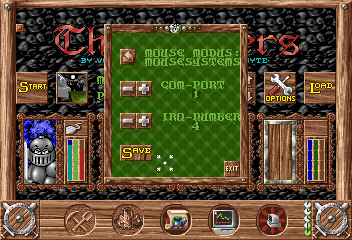
With default serial mouse settings (where DOSBox Staging tries to detect what protocol the application expects) the secondary mouse has to be configured as Mouse Systems mouse - game's internal Microsoft serial mouse driver uses non-standard port settings, which confuses the emulator autodetection mechanism. Microsoft mouse setting can be used if compatible model is explicitly configured, for example using the com_mouse_model = wheel setting.
The Settlers II
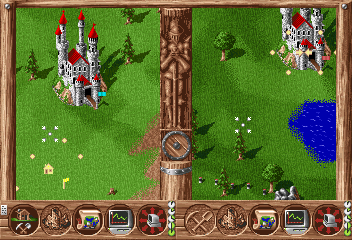
There is no need to configure secondary mouse in-game.
Serial mouse cannot be a Mouse Systems mouse, Settlers II does not support it anymore - but the default settings (autodetection between wheel mouse or Mouse Systems mouse) works correctly.
Make sure the game is fully patched - The Settlers II: Veni, Vidi, Vici version 1.02 does not detect the secondary mouse (it is unclear if it can be fixed in DOSBox). The Settlers II: Gold version 1.51 (GOG release) works correctly.

[Top]